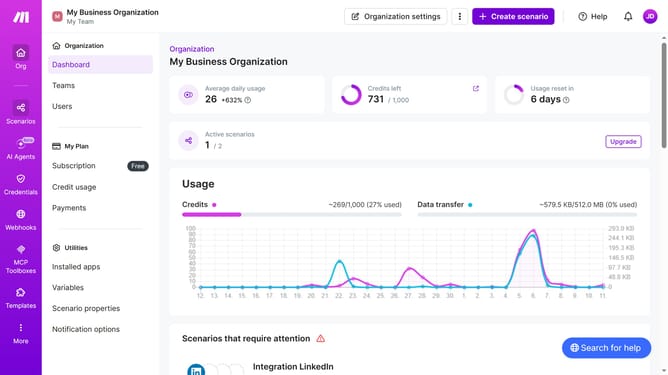
How to manage weekly running schedule for a Discord scenario in Make
Here is how to manage weekly running schedule for a discord scenario in make
- First click on "Scenarios" in the left sidebar
- Then click on the Discord scenario
- Next, click on the "Options" button
- Then select "Scheduling" from the dropdown menu
- After that, click on the "Run scenario" dropdown
- Next, select "Weekly" from the run scenario options
- Then click on the "Days" dropdown menu
- Next, select on checkbox from the days selection
- Finally, click on the "Save" button
Why should you manage weekly running schedule for a Discord scenario in Make
Make is a versatile automation platform designed to seamlessly integrate and automate workflows between various apps and services.
Managing a weekly running schedule for a Discord scenario in Make offers simplicity and structure, ensuring all participants are synchronized and informed. By automating reminders and updates, it reduces manual effort, saving both time and energy.
This integration enhances your community's experience with timely notifications, promoting engagement and accountability. Streamlining your discord coordination through Make ensures your schedule remains consistent and lively.
Last update