How to lock a layer in a diagram in a Miro board
Here is how to lock a layer in a diagram in a miro board
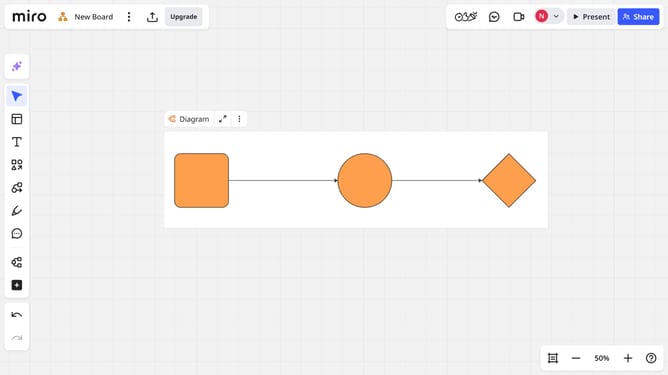
- First open your board and locate the diagram you want to organize
- Then click on the "Focus mode" in the top toolbar
- Next click on the "Layers" button in the top right corner
- In the Layers panel, locate the layer you want to lock
- Finally click the "lock" icon next to the layer name to disable modifications
- Once locked, all objects on that layer become uneditable
Why should you lock a layer in a diagram in a Miro board
Miro is an innovative online platform designed to facilitate seamless collaboration and idea-sharing through its interactive and flexible whiteboard interface.
Locking a layer in a diagram within a Miro board ensures that crucial elements remain fixed and unalterable, safeguarding your design from unintended edits. This feature empowers users to maintain the integrity and structure of their work, fostering a more organized and efficient workflow.
Utilizing the layer lock not only protects your creative process but also enhances team coordination by minimizing disruptions and maintaining focus on collaborative goals.
Last update