How to insert a social block in an email in Mailchimp
Here is how to insert a social block in an email in mailchimp
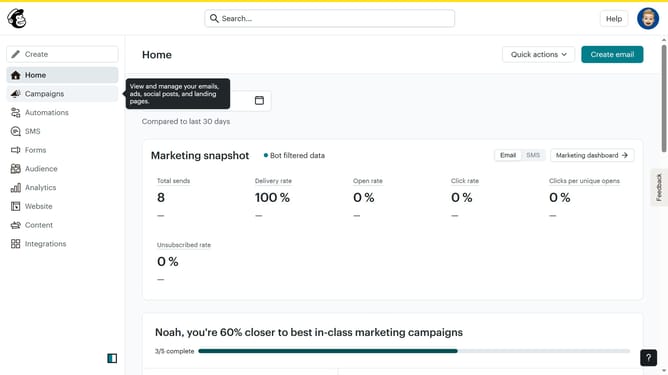
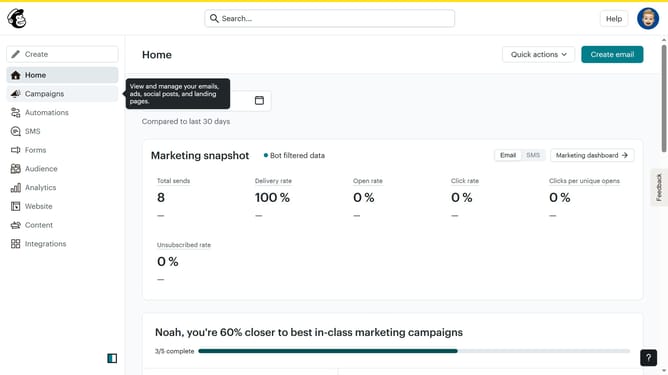
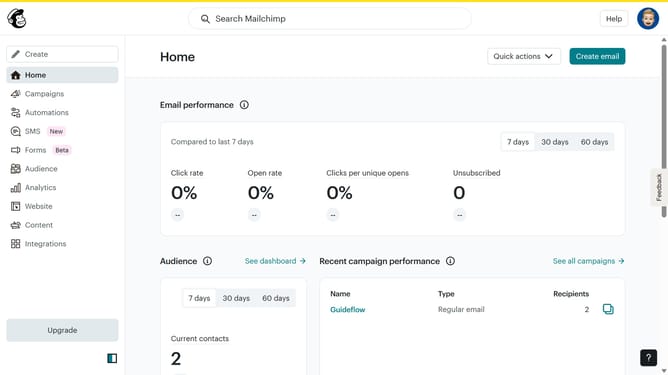
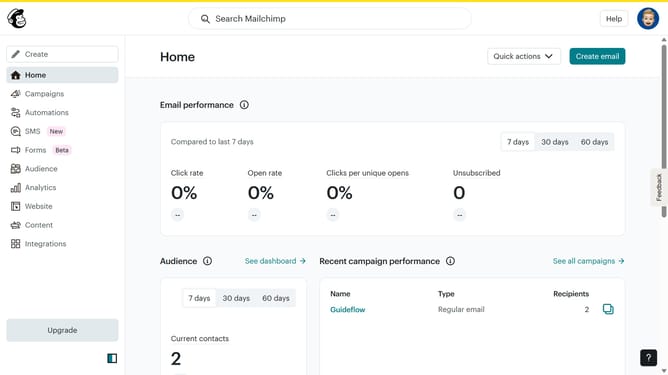
- First click on the "Campaigns" menu item in the left sidebar
- Then click on the "Edit" button next to the Testing Email campaign
- Next click on the "Edit design" button in the email preview panel
- Next click and drag on the "Social" block in the left sidebar to add social media links to your email
- Then click on "Add another social link" button in the left panel to add more social platforms
- Next click in the input field to enter your email address
- Finally click in the empty "Email" label field to customize your email text
Why should you insert a social block in an email in Mailchimp
Mailchimp is a powerful platform designed to amplify email marketing efforts and audience engagement.
By adding a social block in an email, users effortlessly integrate their social media channels directly within their campaigns. This feature makes it simple to connect recipients to your social profiles, increasing online interactions.
Insert a social block to enhance brand visibility and encourage multi-platform engagement, making your communication more dynamic and interconnected.
Last update