How to change the divider color in an email campaign in Mailchimp
Here is how to change the divider color in an email campaign in mailchimp
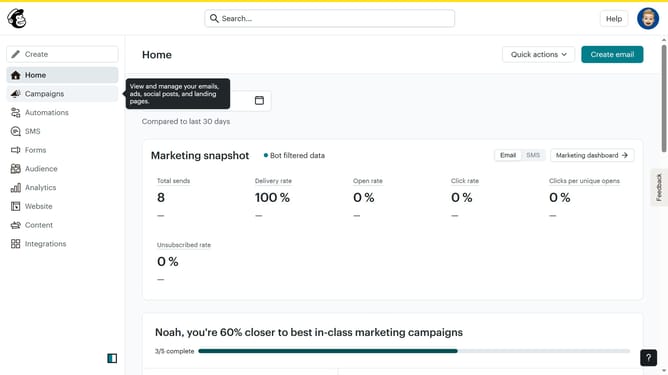
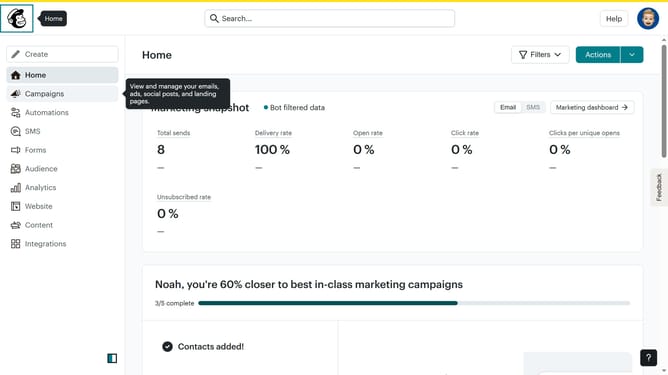
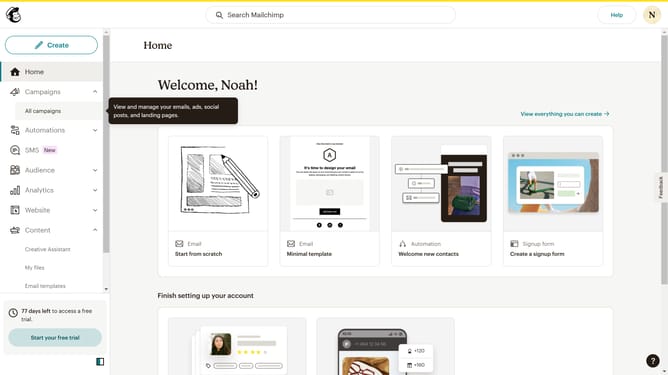
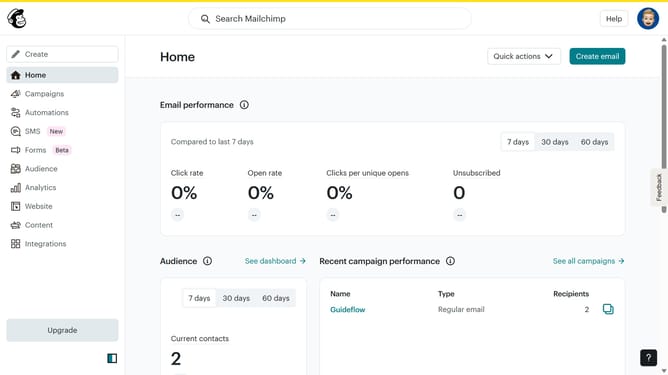
- First click on "Campaigns" in the left sidebar
- Then click on "Edit" button
- Then click on the "Edit design" button at the bottom of the screen
- Then click on the "Styles" tab in the left sidebar
- Then click on "Divider" in the left sidebar
- Then click on the "Line" option in the Styles panel
- Finally click on the color swatch to change the divider color
Why should you change the divider color in an email campaign in Mailchimp
Mailchimp is a powerful tool designed to enhance your email marketing endeavors with ease.
One standout feature is its ability to change the divider color in your email campaigns. Adjusting the divider color allows you to align with your brand palette, creating a cohesive visual experience.
This simple modification can significantly impact the readability and appeal of your messages, drawing attention to key sections and improving engagement.
Overall, customizing divider colors offers a subtle yet effective way to make your emails more visually compelling and memorable.
Last update