How to insert a navigation block on a campaign in Brevo
Here is how to insert a navigation block on a campaign in brevo
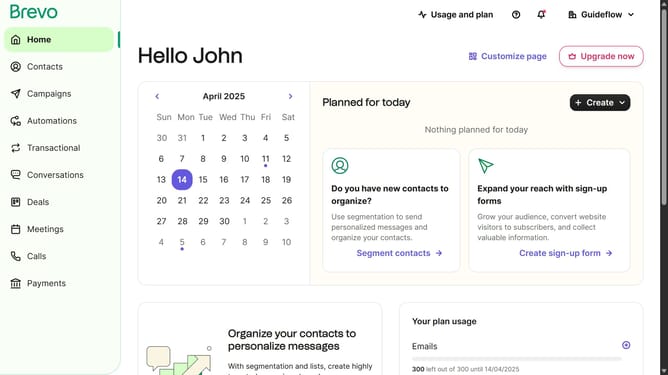
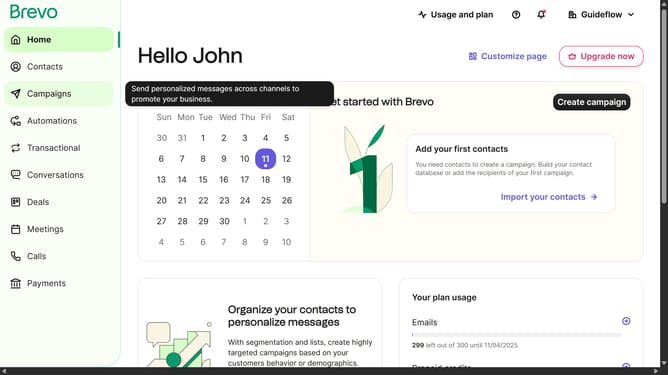
- First click on "Campaigns" in the left sidebar menu
- Then click on the "Market Email" draft campaign from the list
- Next click on the "Edit design" button in the campaign editor
- In the left sidebar, click on the "Navigation" block from the available block options
- Click in the navigation preview area where the "Link" placeholders are displayed
- Finally click on the "Navigation settings" to configure the navigation block
Why should you insert a navigation block on a campaign in Brevo
Brevo is a powerful platform designed to streamline your marketing campaigns and enhance customer engagement effortlessly.
Inserting a navigation block in a campaign within Brevo offers an intuitive way to organize and present content, enhancing user experience and guiding recipients through your offerings seamlessly.
This feature boosts interactivity and clarity, allowing recipients to swiftly locate important links or sections of your campaign, leading to higher engagement rates and a more targeted communication strategy.
By structuring content effectively, navigation blocks make campaigns more user-centric, which ultimately results in increased engagement and conversion.
Last update