Mural
Mural is a visual collaboration platform for brainstorming, planning, and running remote workshops on a shared canvas.
Website
Industry
Design
Share this article:

How to hide content using outline in Mural

Here is how to hide content using outline in mural

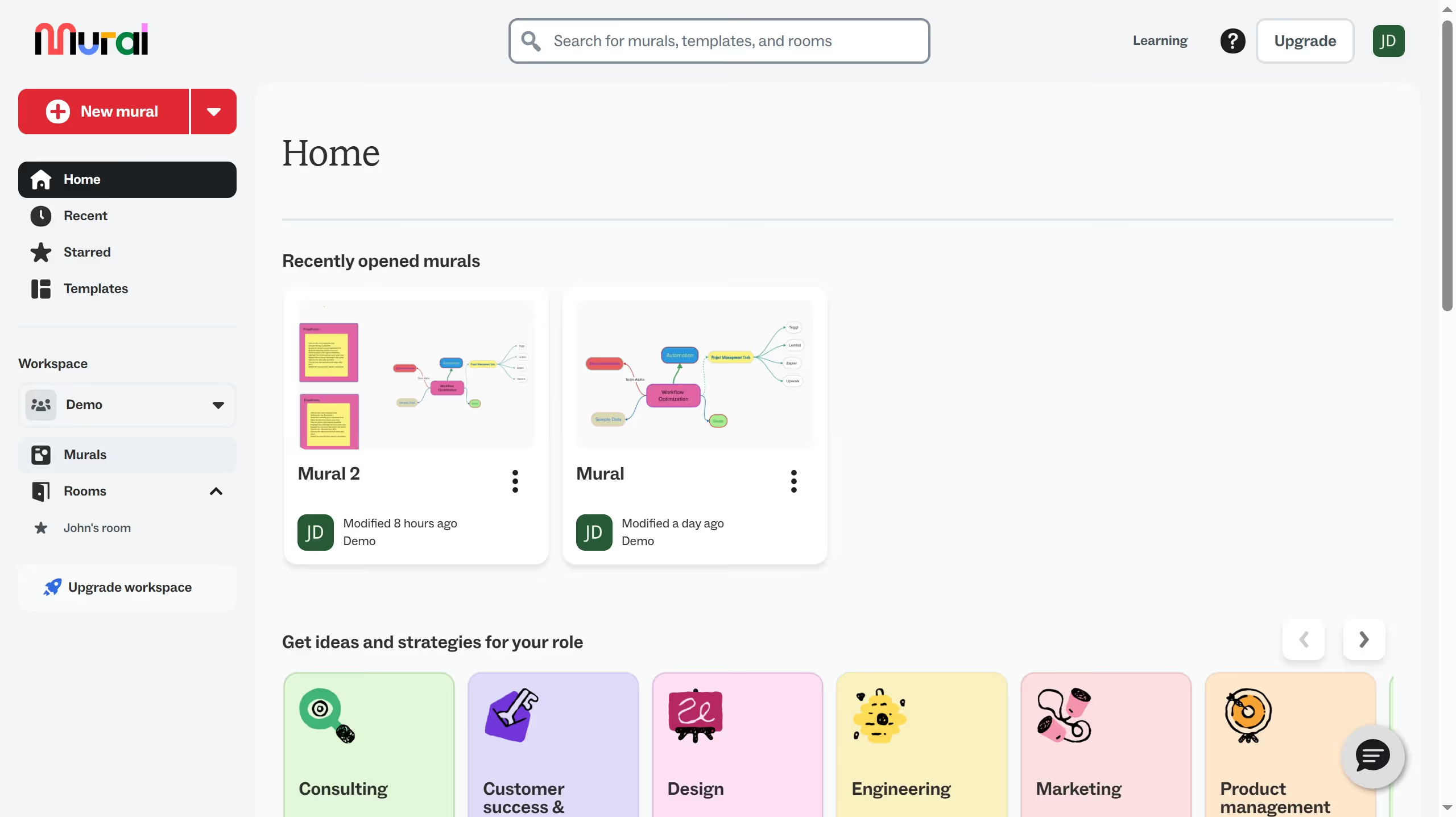
  1. First click on "Murals" in the left sidebar to navigate to the murals section
  2. Then click on the mural filename that you want to manage to open it
  3. Next click on the "Presentation outline" button in the top toolbar to view the outline panel
  4. Finally click on the "Hide this content" toggle icon next to the "FreeForm" item in the presentation outline

Create your own interactive guide with Guideflow

Why should you hide content using outline in Mural

Mural is an intuitive digital workspace designed to enhance visual collaboration and creativity.

The ability to hide content using the outline feature in Mural empowers users to focus on specific elements without distraction. It streamlines the collaborative process, maintaining clarity in complex projects.

By concealing non-essential information, team members can reduce cognitive overload, ensuring that attention remains on the task at hand. This feature enhances productivity and fosters a more organized approach to brainstorming and project management.

Last update
March 16, 2026
Cursor MariaA cursor points to a button labeled "James."

Create your first demo in less than 30 seconds.