How to exclude files and images in workspace export in Notion
Here is how to exclude files and images in workspace export in notion
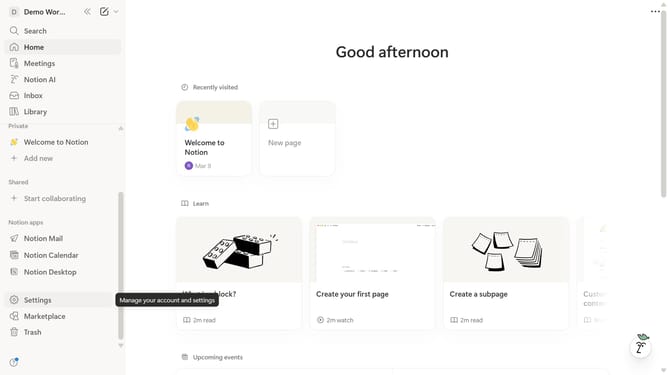
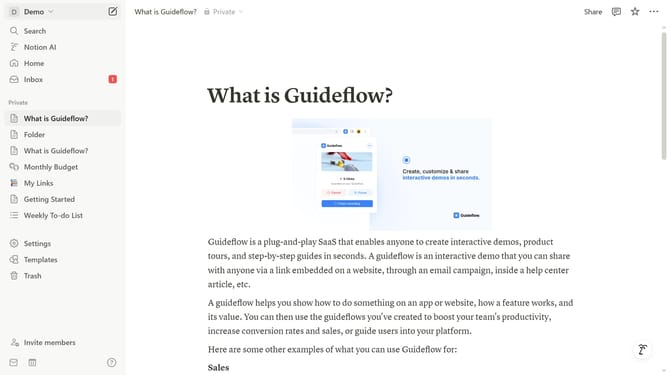
- First click on the workspace switcher button in the top-left header
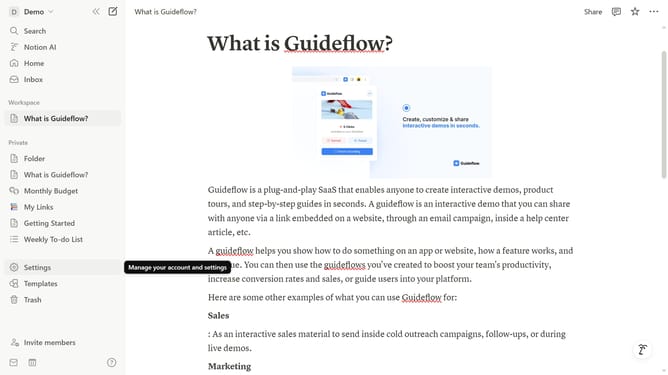
- Then click on "Settings" button in the workspace menu
- Next click on "General" option in the left sidebar under Workspace section
- Then click on "Export" button in the Workspace content section
- Then click on the "Include content" dropdown menu in the export dialog
- Next select "No files or images" option from the dropdown menu
- Finally click on "Export" button in the export dialog to confirm
Why should you exclude files and images in workspace export in Notion
Notion is a versatile all-in-one workspace designed to organize and streamline your workflows.
The ability to exclude files and images in workspace export makes managing data more efficient in Notion.
This feature allows users to focus on crucial textual content without being bogged down by large media files.
Minimizing export size ensures faster processing and easier sharing of essential information, enhancing productivity and collaboration seamlessly.
Last update