Mural
Mural is a visual collaboration platform for brainstorming, planning, and running remote workshops on a shared canvas.
Website
Industry
Design
Share this article:

How to enter fullscreen while presenting in Mural

Here is how to enter fullscreen while presenting in mural

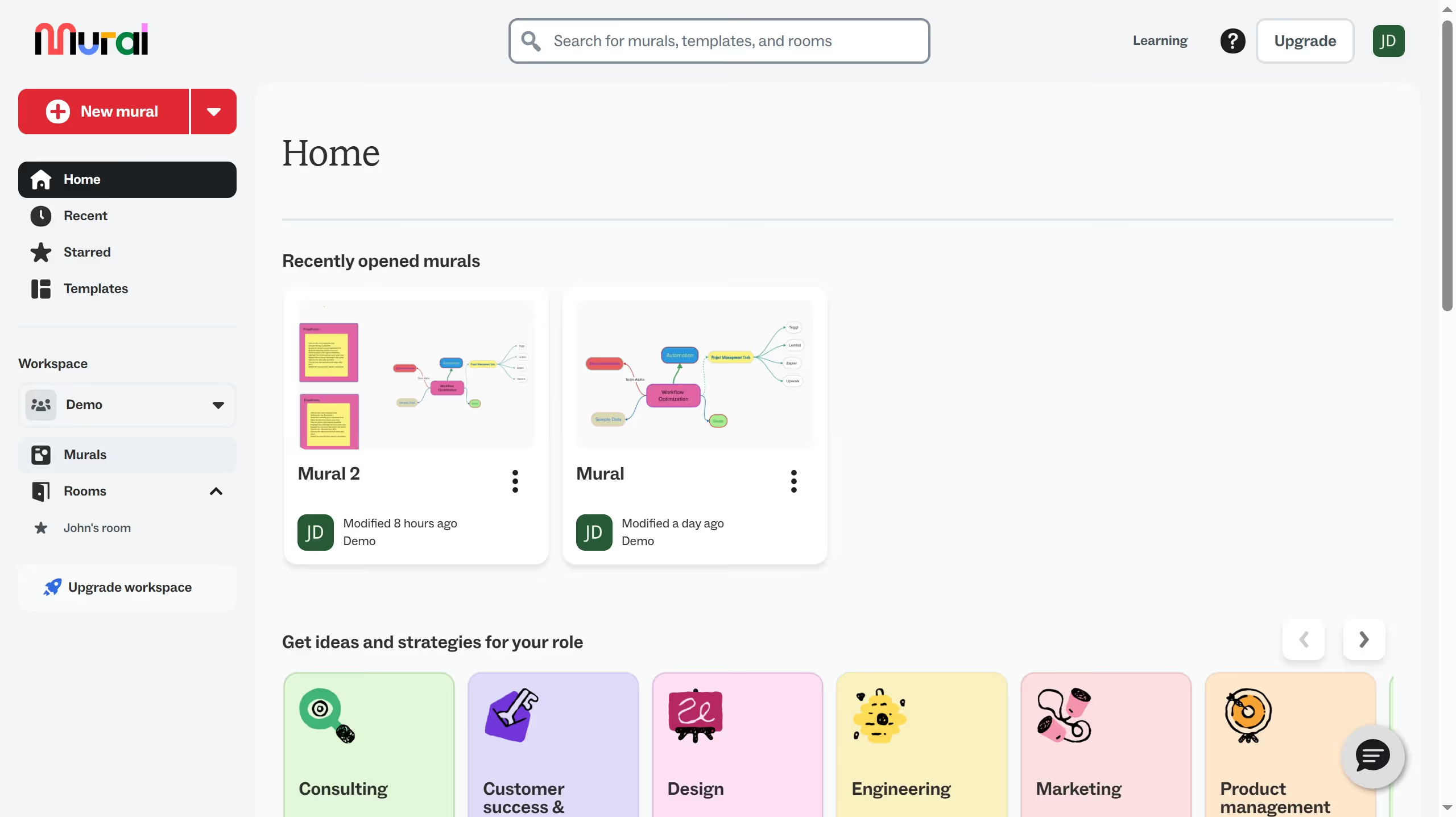
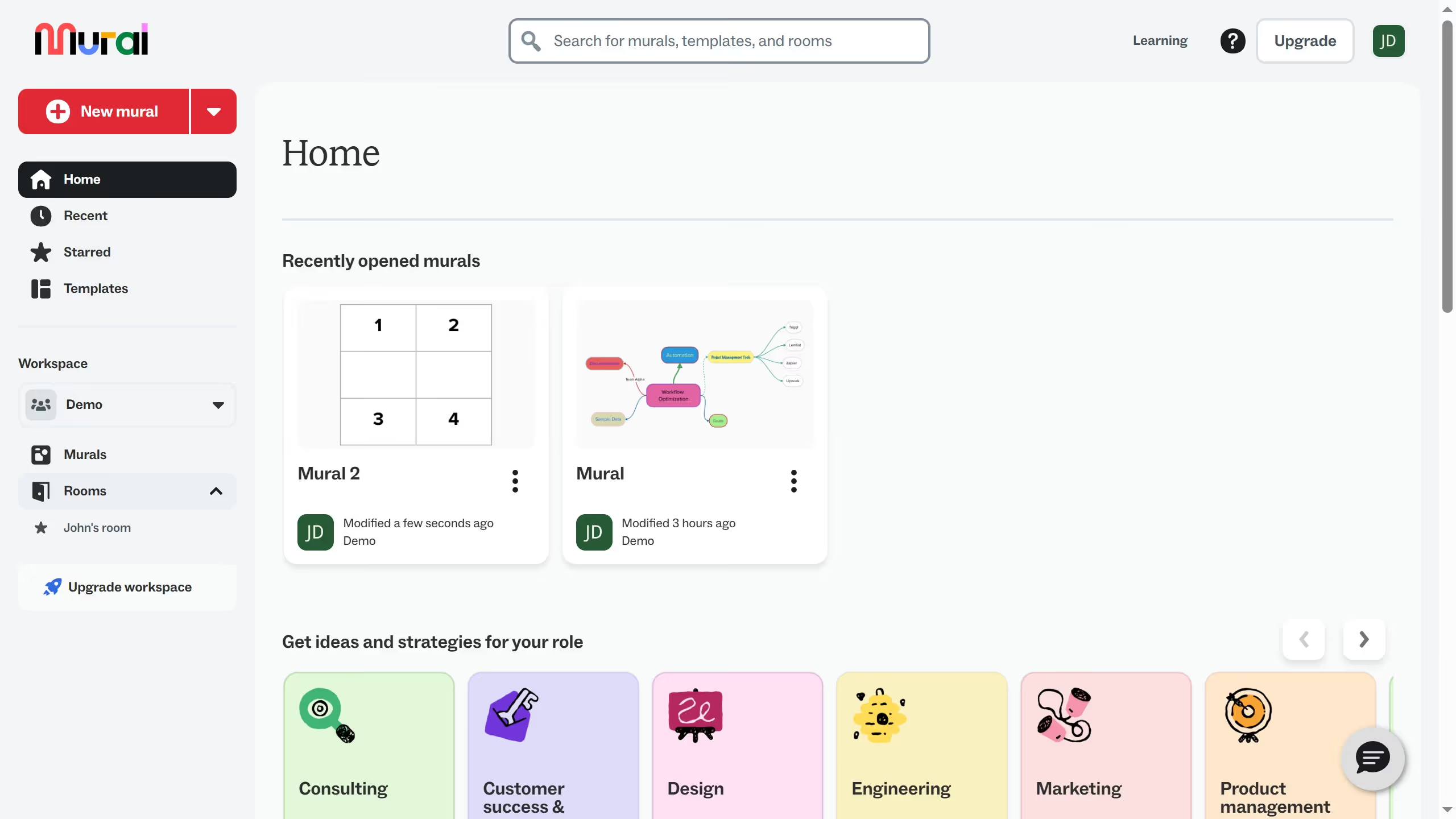
  1. First click on "Murals" in the sidebar to navigate to the murals section
  2. Then click on the mural that you want to manage to open it
  3. Next click on the "Outline" button in the top toolbar to view the presentation outline panel
  4. Then click on the "Present" button in the presentation outline panel to start the presentation
  5. Finally click on the "Enter fullscreen" button in the presentation control bar

Create your own interactive guide with Guideflow

Why should you enter fullscreen while presenting in Mural

Mural is a collaborative digital workspace designed to enhance team creativity and productivity through visual collaboration tools.

Entering fullscreen mode while presenting in Mural offers an immersive experience, allowing presenters to maintain their audience’s focus on every detail of the visual content. This feature minimizes distractions, helping to emphasize key points and facilitate comprehensive understanding.

Focusing solely on the visual elements increases engagement and ensures more impactful communication, making meetings more effective and memorable.

Last update
March 13, 2026
Cursor MariaA cursor points to a button labeled "James."

Create your first demo in less than 30 seconds.