How to enable chat message notification banners in Microsoft Teams
Here is how to enable chat message notification banners in microsoft teams
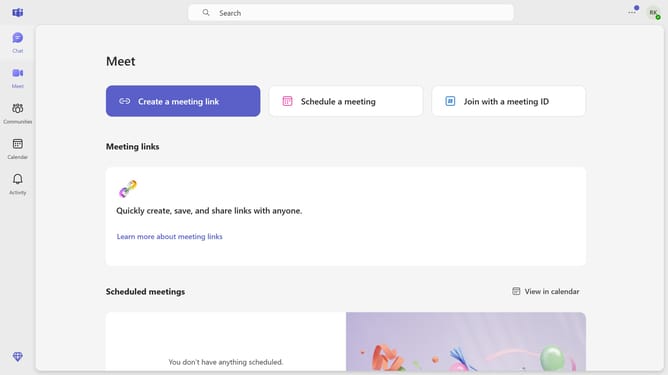
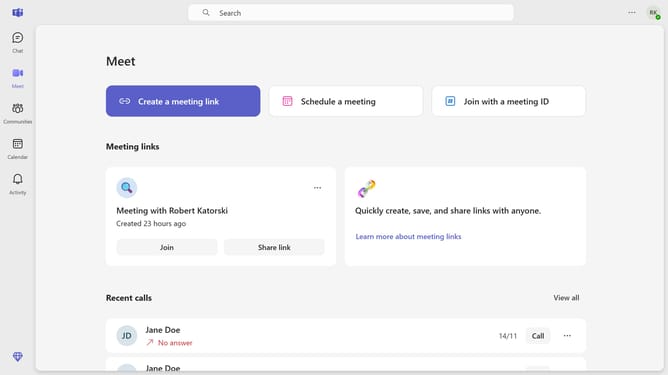
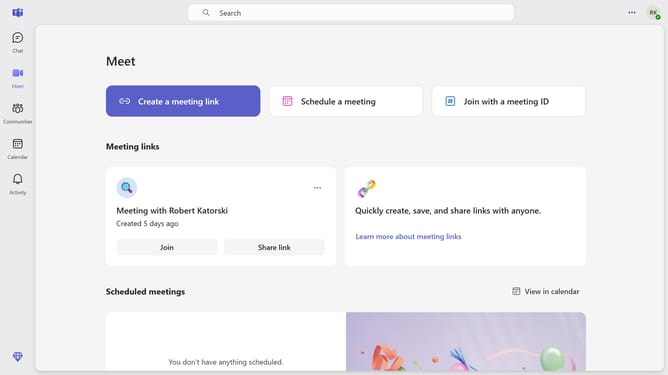
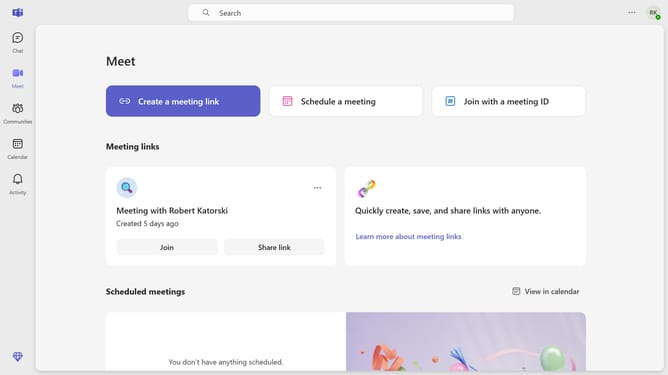
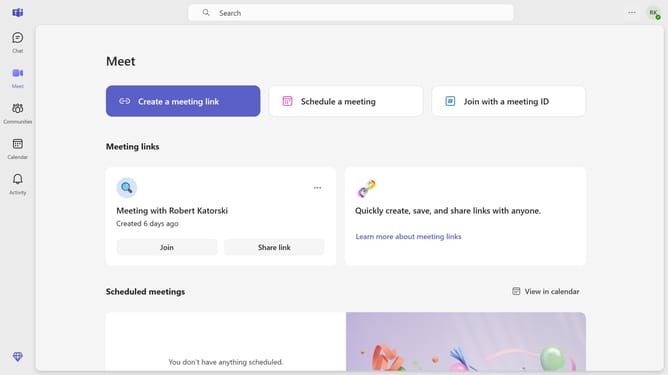
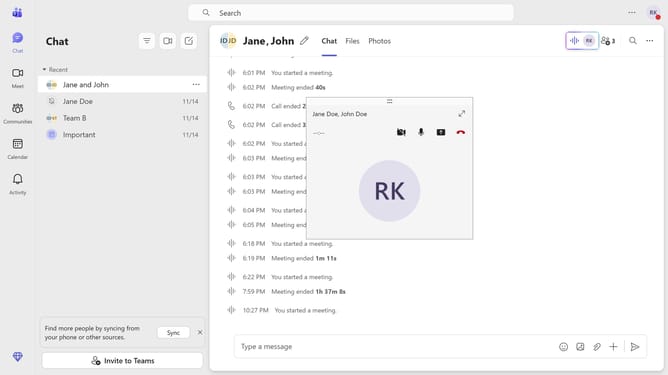
- First click the "More options" button in the top-right corner of the main window
- Then click on "Settings" option in the dropdown menu
- Next click on "Notifications and activity" in the left sidebar menu
- Scroll down in the Notifications and activity settings
- Click to open the "Chat message notifications" dropdown menu
- Finally select "Show in banner" option from the chat notifications dropdown
Why should you enable chat message notification banners in Microsoft Teams
Microsoft Teams is a dynamic collaboration platform designed to streamline communication within organizations.
Enabling chat message notification banners in Teams ensures you never miss important messages. This feature prominently displays new messages at the top of your screen, so you can instantly be aware of and respond to urgent communication.
This helps maintain smooth workflow and reinforces timely interactions among team members. Additionally, it boosts productivity as you stay up-to-date with the latest discussions without constantly checking the app.
Last update