How to enable a disabled extension on a base in Airtable
Here is how to enable a disabled extension on a base in airtable
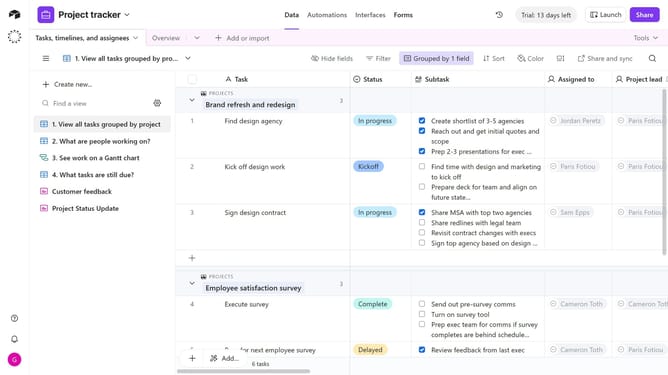
- First, open the base where the extension is located
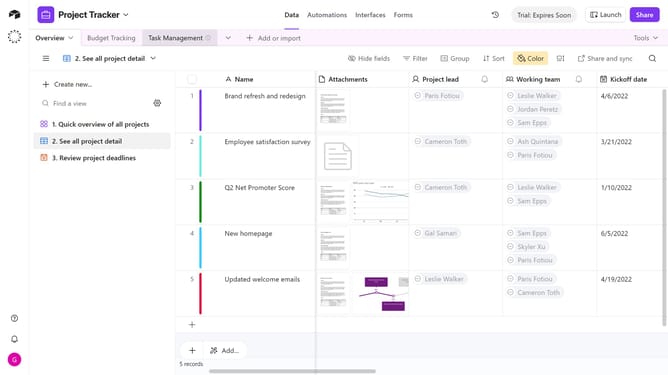
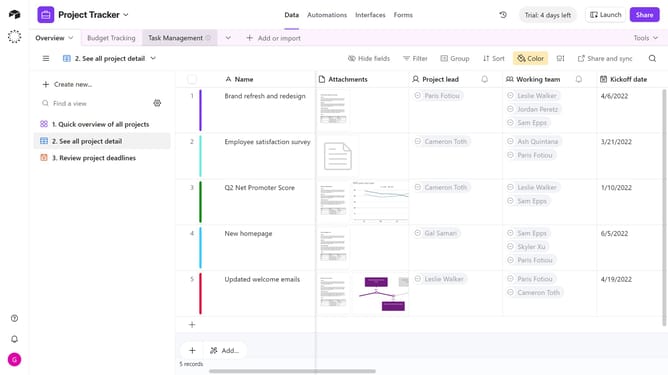
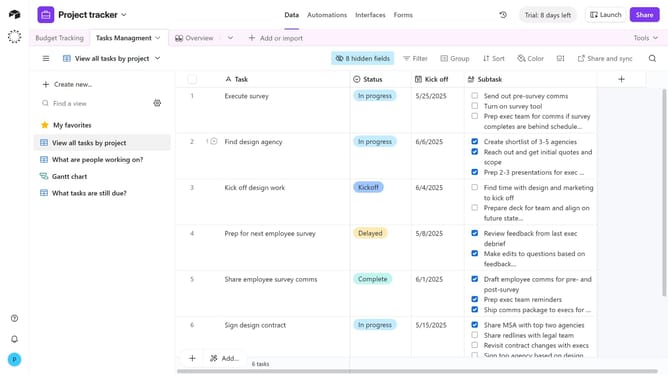
- Next click on the "Tools" dropdown button in the top-right corner of the base
- Then click on "Extensions" option from the dropdown menu
- In the extensions panel, locate the extension that is currently disabled
- Finally click on "Enable" button to activate the dashboard extension
Why should you enable a disabled extension on a base in Airtable
Airtable is a versatile platform that combines the power of a database with the usability of a spreadsheet.
Enabling a disabled extension on a base in Airtable is a convenient way to supercharge your workflow. This feature allows you to customize your base with specialized tools, enhancing productivity and creativity.
Reactivating extensions can streamline processes by restoring access to key functionalities and integrations. This ensures a seamless, more efficient experience tailor-fitted to your project needs, fostering a collaborative and organized workspace.
Last update