How to edit drop-down menu in Webflow?
Here is how to edit drop-down menu in webflow
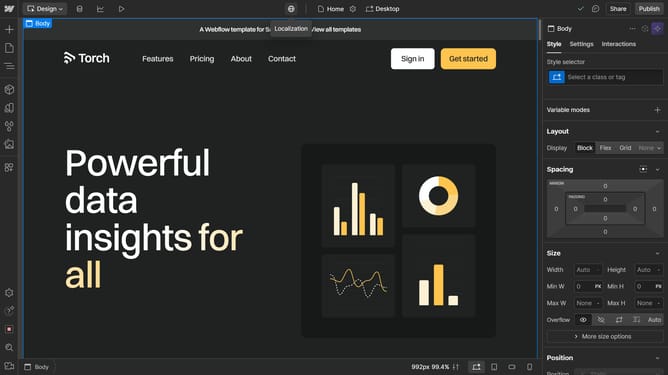
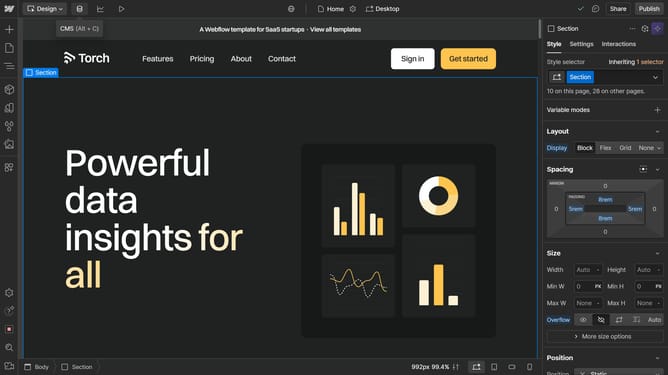
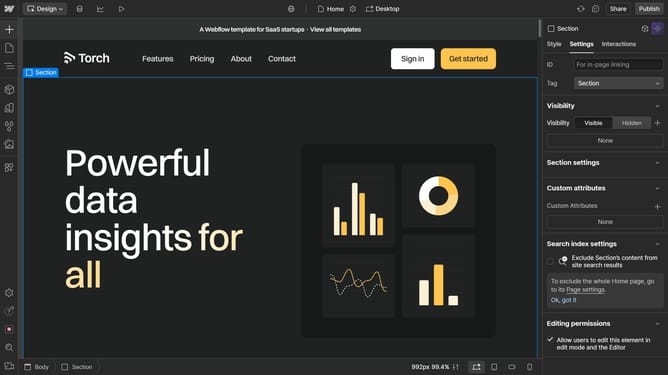
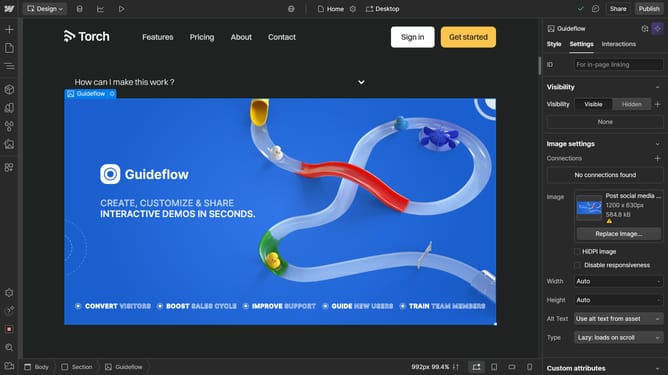
- First, click on the dropdown menu element that you want to edit
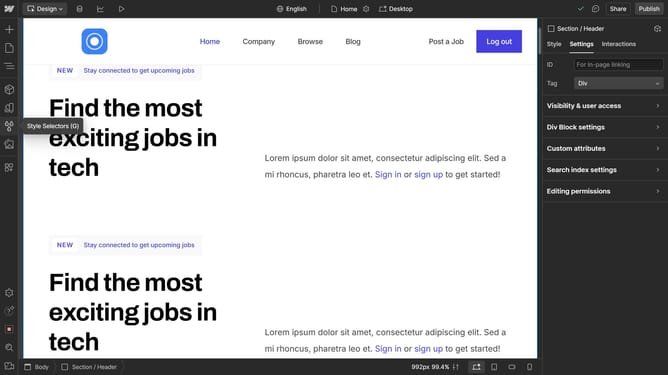
- Next, go to "Settings" in the right sidebar
- Find the dropdown settings section
- In the menu, select "Show" to make your dropdown visible
- Your menu is now visible, allowing you to edit its content and settings.
- You can also adjust settings to display the menu on hover or click and assign links to each item
Why should you edit drop-down menu in Webflow?
Webflow is a powerful visual web design tool that empowers creators to build stunning, responsive websites without coding.
Editing a drop-down menu in Webflow involves intuitive drag-and-drop features that make it simple to customize your site’s navigation. This flexibility allows you to enhance user experience by organizing content logically and attractively.
Harnessing the power of Webflow's design capabilities, you can create a seamless, engaging browsing experience, which ultimately fosters greater visitor retention and a polished online presence.
Last update