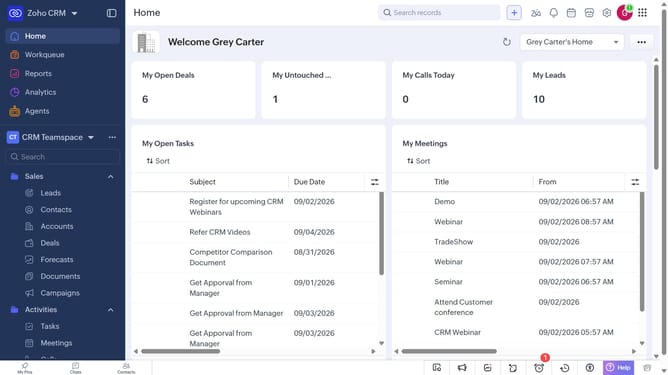
How to edit a price book on Zoho CRM
Here is how to edit a price book on zoho crm
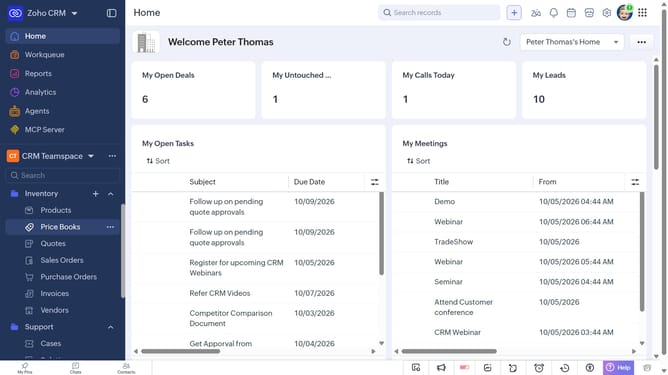
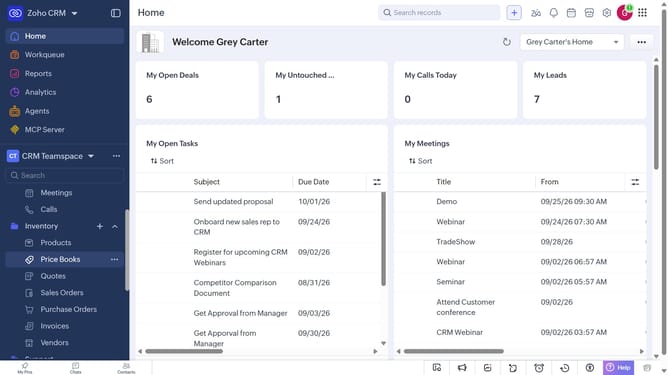
- First click on "Price Books" under "Inventory" in the left sidebar menu
- Next, click on the price book you want to edit
- After that, click on the "Edit" button
- Then, make the necessary changes to the price book details
- Finally, click on the "Save" button
Why should you How to edit a price book on Zoho CRM
Zoho is a comprehensive suite of business tools designed to simplify and streamline your operations.
Editing a price book on Zoho CRM allows you to maintain up-to-date pricing strategies, helping you adapt to market changes swiftly. By refining your price book, you can cater to diverse customer segments and boost sales efficiency.
Easily adjusting your price book ensures that your team always has access to the latest pricing information, which enhances customer interactions and supports informed decision-making.
Overall, this feature empowers businesses to stay competitive and responsive in a dynamic marketplace.
Last update