Mural
Mural is a visual collaboration platform for brainstorming, planning, and running remote workshops on a shared canvas.
Website
Industry
Design
Share this article:

How to download file in Mural

Here is how to download file in mural

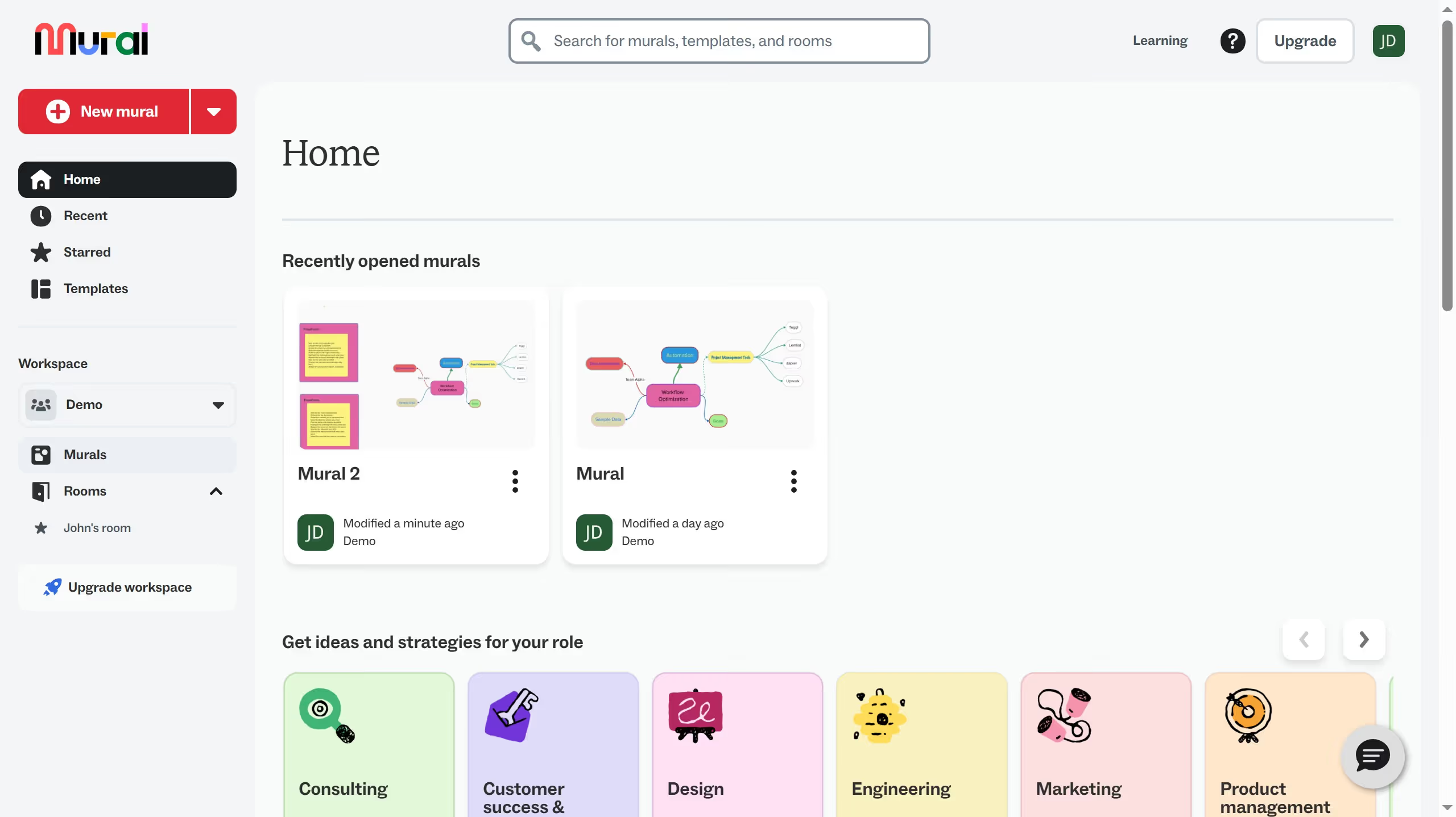
  1. First click on "Murals" in the sidebar menu to view all murals in the workspace
  2. Then click on the mural filename that you want to manage to open it
  3. Next click on the "Mural options" dropdown menu in the top navigation bar to access additional mural settings
  4. Then click on "Download mural" option from the dropdown menu to initiate the download process
  5. Finally click on the "Download" button to confirm and start downloading the mural file

Create your own interactive guide with Guideflow

Why should you download file in Mural

Mural is a dynamic digital workspace designed to enhance collaboration and creativity within teams.

The ability to download files in Mural ensures that your important data and creative projects are always at your fingertips. This feature provides a seamless way to capture and access key information even when offline, ensuring you never miss a beat in your projects.

Downloading files is efficient and straightforward, enabling teams to conveniently share insights and updates. This enhances productivity and supports agile workflows, ultimately leading to better project outcomes.

Last update
March 13, 2026
Cursor MariaA cursor points to a button labeled "James."

Create your first demo in less than 30 seconds.