Mural
Mural is a visual collaboration platform for brainstorming, planning, and running remote workshops on a shared canvas.
Website
Industry
Design
Share this article:

How to revoke invitation in Mural

Here is how to revoke invitation in mural

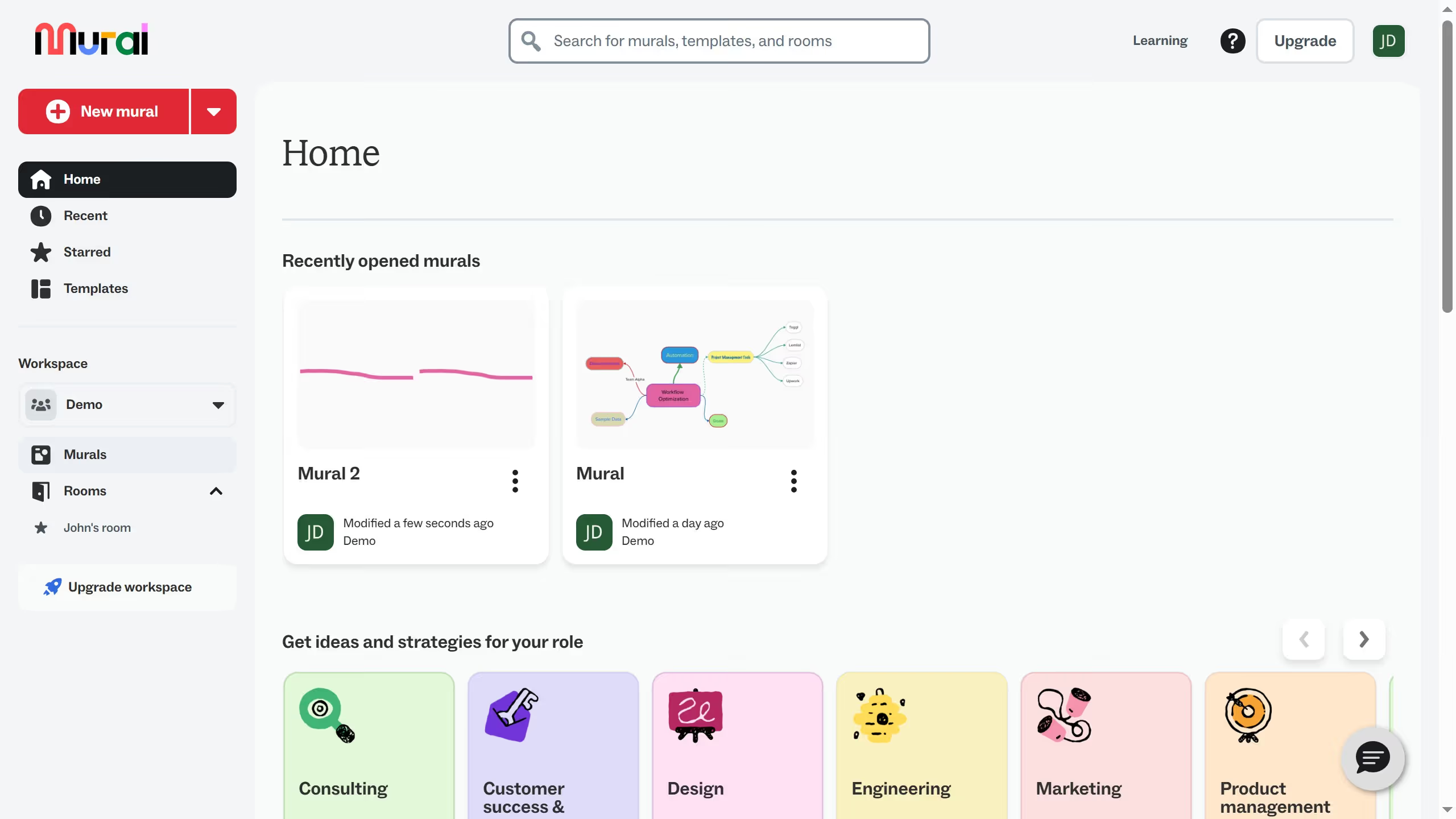
  1. First click on "Murals" in the sidebar navigation
  2. Then click on the three-dot menu icon on the Mural card to open context menu
  3. Next click on "Share" option in the context menu
  4. Then click on "Advanced settings" link in the share dialog
  5. Next click on "People with access" tab in the advanced settings
  6. Then click on "Manage mural users" button
  7. Next click on "Pending invitations (1)" tab
  8. Then click on the delete icon in the Actions column for the pending invitation
  9. Finally click on "Confirm" button in the removal confirmation dialog

Create your own interactive guide with Guideflow

Why should you revoke invitation in Mural

Mural is a dynamic online workspace designed to enhance collaborative thinking and brainstorming.

One of its intuitive features is the ability to revoke an invitation. This ensures complete control over who can access your collaborative space.

Using this feature protects sensitive information, maintains privacy, and keeps your workspace secure by easily managing participant access.

Overall, the invitation revocation feature offers flexibility and peace of mind in managing your digital collaboration environment.

Last update
March 13, 2026
Cursor MariaA cursor points to a button labeled "James."

Create your first demo in less than 30 seconds.