Mural
Mural is a visual collaboration platform for brainstorming, planning, and running remote workshops on a shared canvas.
Website
Industry
Design
Share this article:

How to change text color in a template in Mural

Here is how to change text color in a template in mural

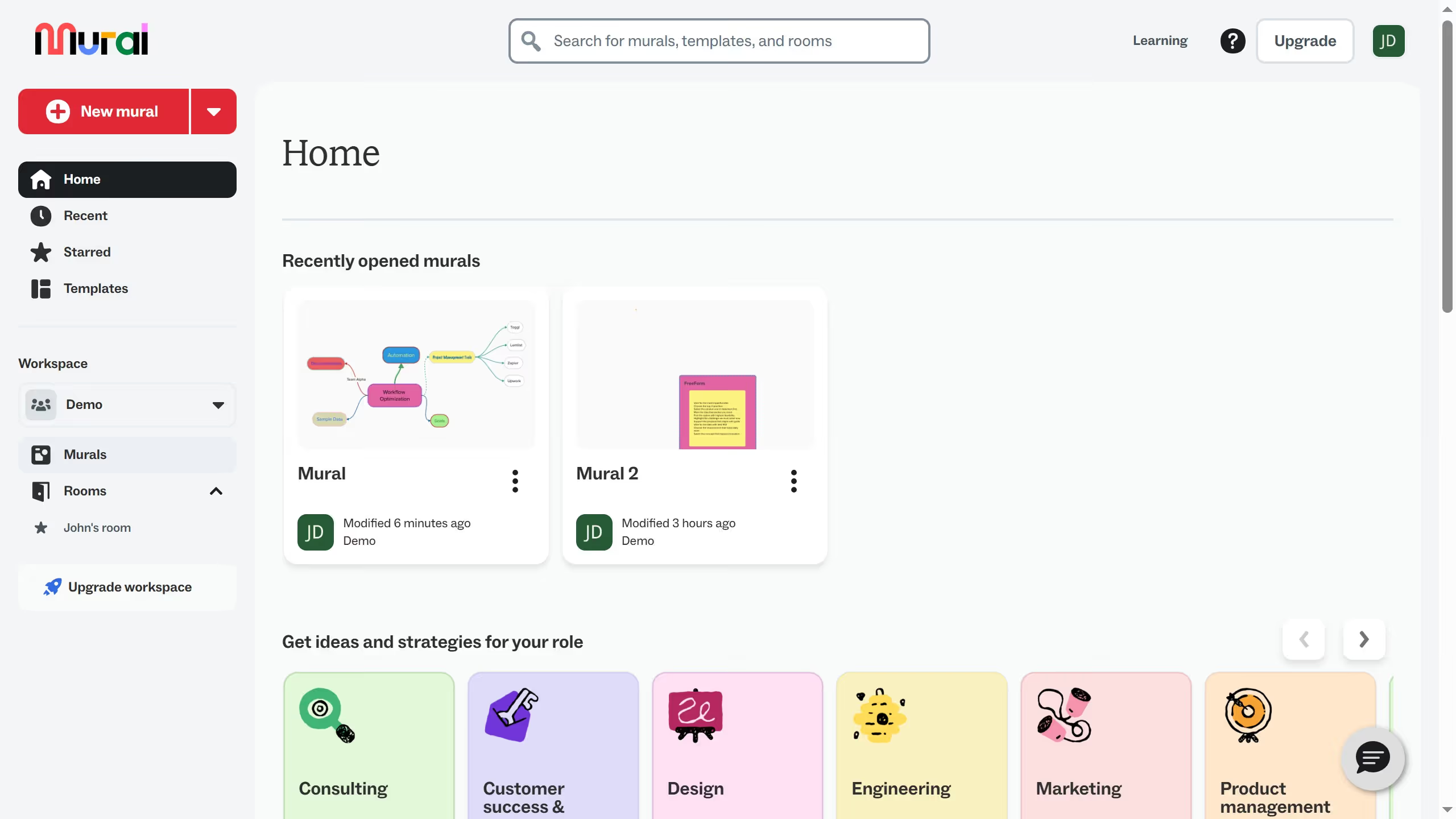
  1. First click on the Mural card in the murals section
  2. Then click on the text box in the canvas area that you want to change
  3. Next click on the "Text color" button in the formatting toolbar
  4. Finally select a color option from the color picker palette

Create your own interactive guide with Guideflow

Why should you change text color in a template in Mural

Mural is a dynamic digital workspace designed for visual collaboration and idea generation.

Changing text color in a template within Mural enhances communication clarity and visual impact, allowing for better differentiation of ideas. This feature ensures that essential points stand out and are easily recognizable, streamlining the collaborative process.

Utilizing varied colors in text helps in organizing information more effectively. It fosters creativity and engagement, making your collaborative work more vibrant and interactive, ultimately aiding more efficient decision-making.

Last update
March 13, 2026
Cursor MariaA cursor points to a button labeled "James."

Create your first demo in less than 30 seconds.