How to download a file from the Files column in Monday.com
Here is how to download a file from the files column in monday.com
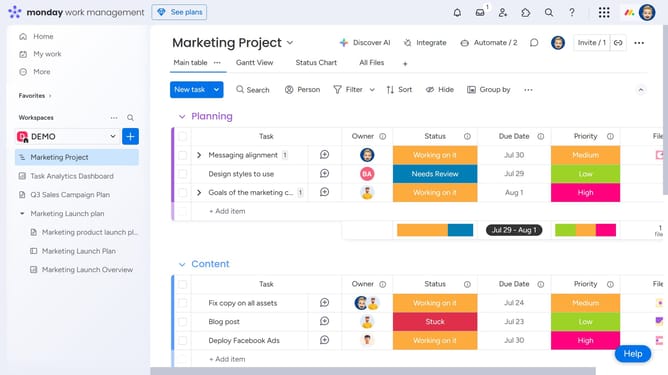
- First locate the item that contains the file you want to download in the Files column
- Next hover over the file thumbnail in the Files column to preview it
- In the file preview popup, click on the three dots menu in the top-right corner
- Then click on the "Download File" option in the dropdown menu
- Finally the file will be downloaded directly to your device
Why should you download a file from the Files column in Monday.com
Monday.com is a dynamic work operating system designed to empower teams to run projects and workflows with confidence.
The Files column feature offers a streamlined method to access and download necessary files quickly. This ensures that vital documents are always at your fingertips, enhancing productivity and workflow efficiency.
Downloading files directly simplifies collaboration by reducing wait times and administrative back-and-forths. It's perfect for keeping your team aligned and ensuring everyone has the most current information.
Last update