How to disconnect your Google Calendar from Zendesk Sell
Here is how to disconnect your google calendar from zendesk sell
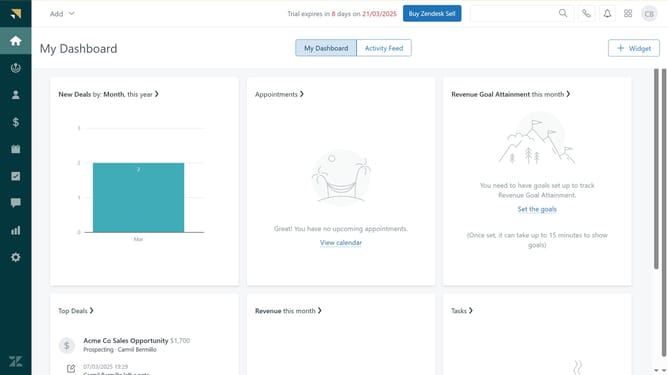
- First in Zendesk sell, click on the "Settings" icon in the left sidebar menu
- Then click on "Calendars" under the Integrations section
- In the Calendar Accounts section, locate the calendar account you want to disconnect
- Next click on the "Edit Account" button for the selected calendar
- Click on the "Remove Account" link in the bottom right of the calendar settings
- Finally click on the "Remove account" button in the confirmation dialog box
Why should you disconnect your Google Calendar from Zendesk Sell
Zendesk Sell is a powerful tool designed to streamline and optimize your sales process seamlessly.
Disconnecting your Google Calendar from Zendesk Sell offers the flexibility to manage your schedule independently when needed.
This feature is especially beneficial if you need to pause the integration for privacy reasons or simply wish to declutter your calendar view temporarily.
Decoupling the two systems ensures that personal and professional schedules remain distinct, offering peace of mind while maintaining organizational efficiency.
Last update