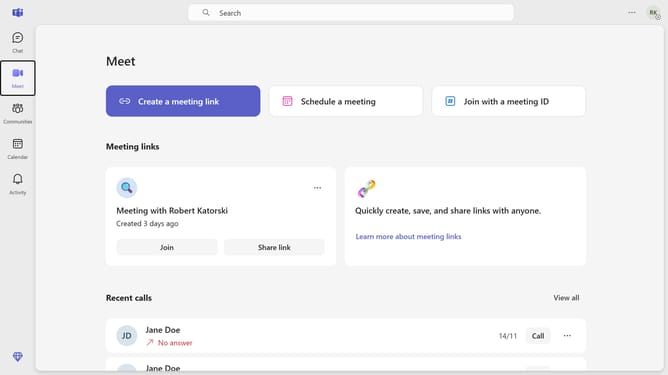
How to disable chat message notification banners in Microsoft Teams
Here is how to disable chat message notification banners in microsoft teams
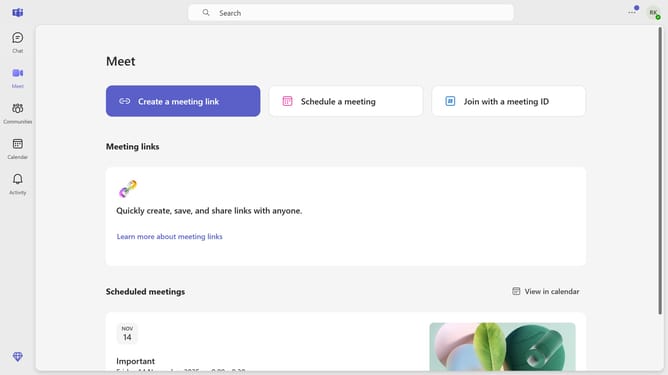
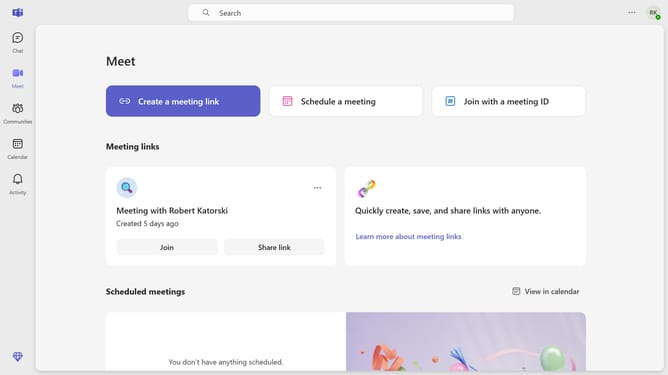
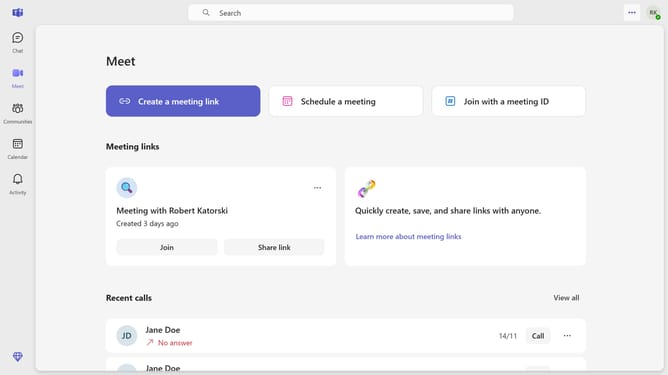
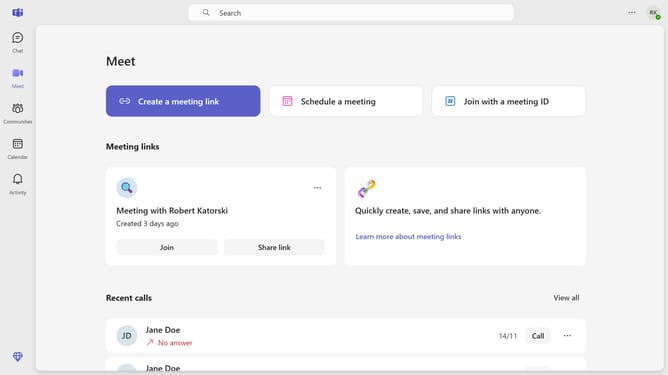
- First click the menu (three-dot icon) in the top-right corner of the screen to access Settings
- Then click "Settings" from the dropdown menu
- Next click on "Notifications and activity" in the Settings sidebar menu
- Scroll down in the Notifications and activity settings menu
- Click on the dropdown menu for "Chat message notifications"
- Finally select "Off" option from the dropdown menu
Why should you disable chat message notification banners in Microsoft Teams
Microsoft Teams is a powerful collaboration platform designed to streamline communication and teamwork in any setting.
Disabling chat message notification banners in Microsoft Teams can significantly enhance your focus and productivity. By reducing on-screen distractions, you allow yourself to dive deeper into work without the constant interruption of pop-up notifications.
This feature is especially valuable during focused periods or meetings, ensuring that your attention remains undiverted, while still keeping communication channels accessible for when you’re ready to engage.
Last update