How to delete custom fields in Zendesk Sell
Here is how to delete custom fields in zendesk sell
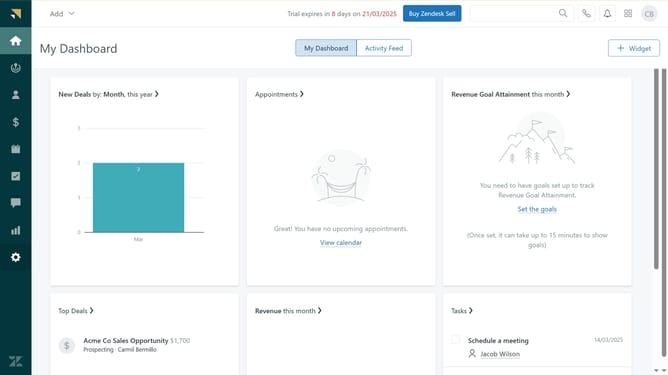
- First in Zendesk sell, click on the "Settings" icon in the left sidebar menu
- Then, under "Customize", click Leads, Contacts or Prospects or Customers, or Deals containing the custom field to delete
- Next locate the "Custom fields" section
- In your list of custom fields, click the "Trashcan" icon for the field you want to delete
- Finally click the "Remove" button in the confirmation dialog to confirm the deletion
Why should you delete custom fields in Zendesk Sell
Zendesk is a comprehensive customer service platform designed to enhance customer relationships through efficient communication tools.
In Zendesk Sell, custom fields offer the flexibility to tailor customer data fields to specific business needs. Removing unnecessary custom fields streamlines your data management, ensuring that only relevant information is at your fingertips, optimizing productivity.
This feature not only declutters your database but also enhances data accuracy by eliminating redundant or outdated fields. Prioritizing essential information leads to better decision-making and a smoother workflow.
Last update