How to delete a dashboard in Zendesk Explore
Here is how to delete a dashboard in zendesk explore
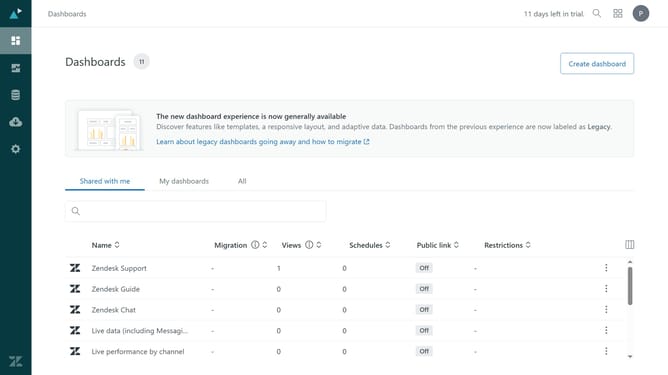
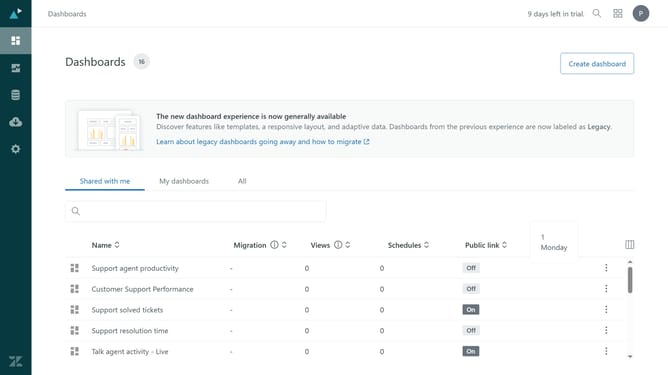
- First in Zendesk Explore, click on "Dashboards" in the left sidebar
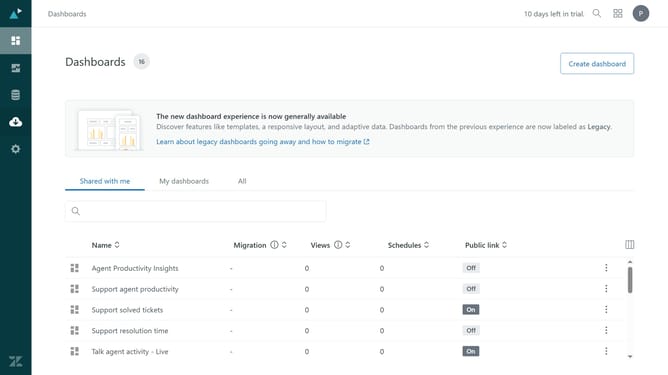
- In the dashboard list view, click on "My dashboards" tab
- Find the dashboard you want to delete in the list
- Click on the "More options" menu (three dots) next to it
- Then click "Delete" option in the dropdown menu
- Alternatively, click on the dashboard you want to delete
- Next in the top-right corner of the dashboard, click on the "More options" menu (three dots)
- Select "Delete" from the dropdown menu
- Finally, click "Yes, delete" in the confirmation dialog to to confirm the deletion
Why should you delete a dashboard in Zendesk Explore
Zendesk is a powerful customer service software designed to enhance customer interactions and improve support efficiency.
Deleting a dashboard in Zendesk Explore helps to maintain an organized workspace, ensuring that only relevant and necessary analytical data is kept.
This feature allows users to easily manage their dashboard content, providing a streamlined experience as they focus on the most crucial insights.
By cleaning up unnecessary dashboards, users can enhance productivity and ensure their data reflects current priorities and objectives.
Last update