How to create special dates in Aircall
Here is how to create special dates in aircall
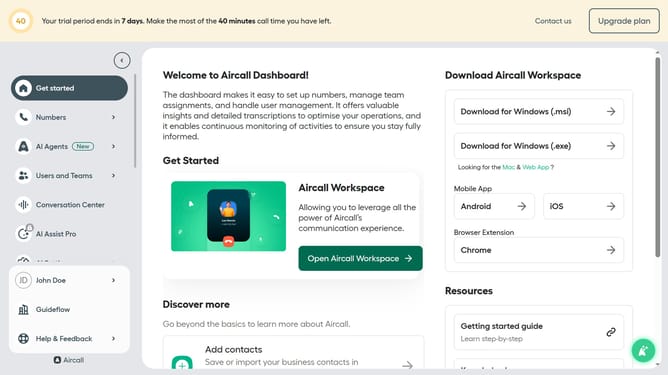
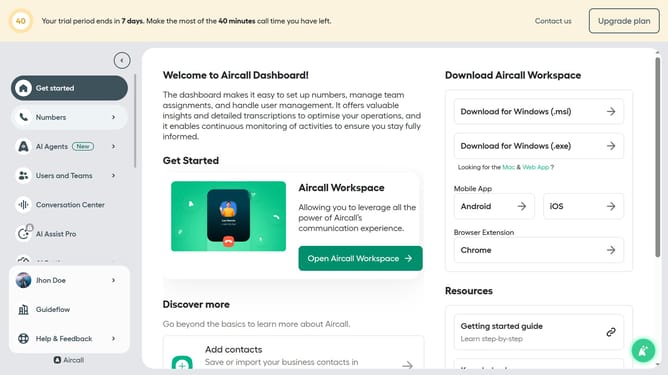
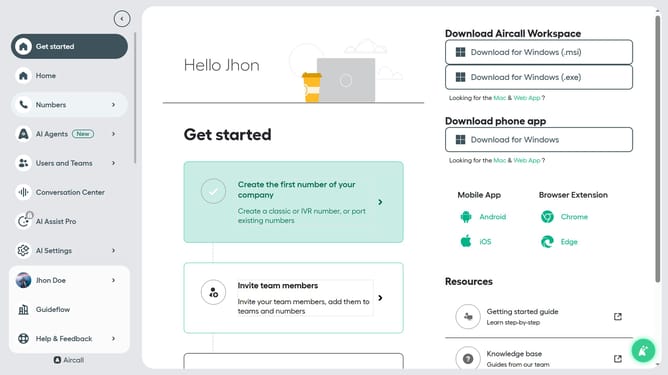
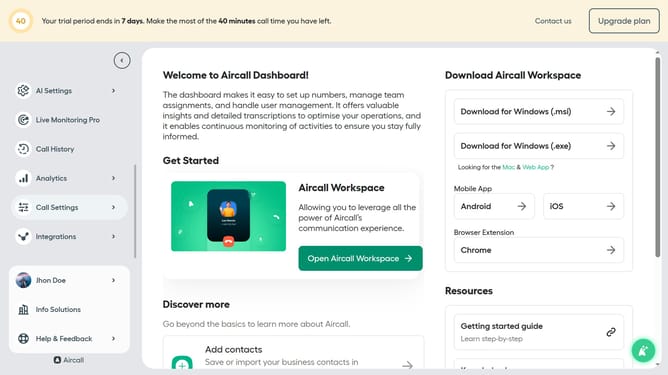
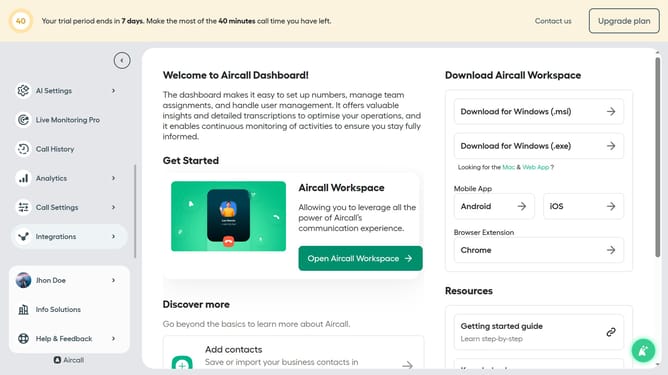
- First, click on "Call Settings" in the left sidebar
- Then, select "Special dates" from the expanded menu
- Next, click on the "Create Special dates" button in the top right corner
- After that, click on the "Name" input field to enter a name for the special date
- Then, click on the "+ Add dates" option
- Click on the three dots menu next to the date entry
- Select "Edit" from the options
- Click on the start date input field
- Click the right arrow button to advance the month in the calendar
- Select the day from the calendar
- Click on the end date input field
- Click the right arrow button to advance the month in the calendar
- Select the 25th day from the calendar
- Click on the "Create" button to save the special date
- Finally, click on the "Apply to a number" button to apply the created special date
Why should you create special dates in Aircall
Aircall is a dynamic phone system designed to enhance business communication.
One of Aircall’s handy features is the ability to create special dates, allowing you to tailor call settings effortlessly.
This feature provides flexibility to accommodate holidays, unique business events, or any specific date requiring different call handling.
By customizing your phone system for special dates, you ensure seamless communication, maintain professionalism, and optimize operations even during atypical times.
Last update