How to create an org chart in a Miro board
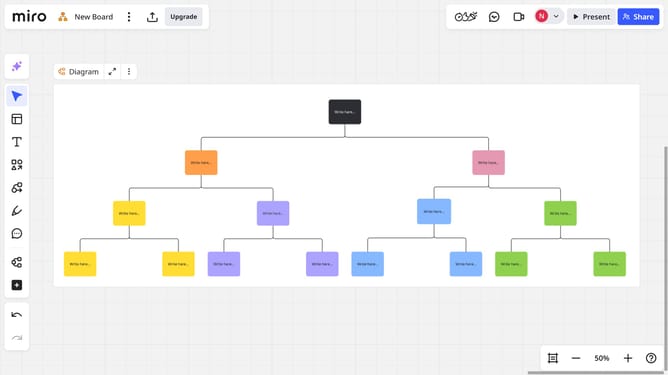
Here is how to create an org chart in a miro board
- First open the Miro board where you want to create the organizational chart
- Then click on the "+" button in the left sidebar menu
- Next click in the search box and type "Org chart"
- Click on "Org chart" option in the search results
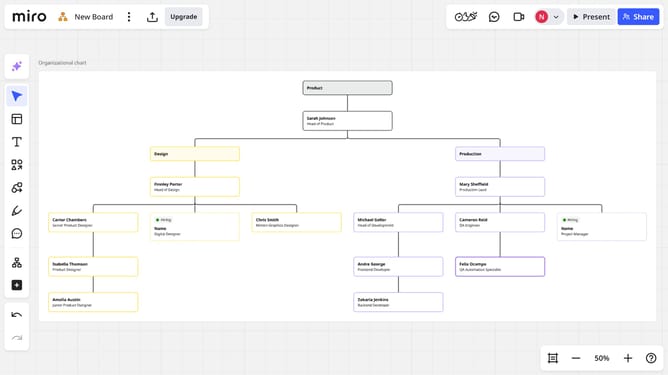
- Then click the “Import CSV” button to upload your organizational data. Miro will automatically process the file and generate the corresponding org chart structure
- Alternatively, double-click any card to manually enter details such as name, role, team, and description
Why should you create an org chart in a Miro board
Miro is an online collaborative whiteboard platform designed to bring teams together for impactful visual communication and collaboration.
Creating an org chart in a Miro board makes organizational structures easily understandable and accessible to all team members. This feature allows you to visually map out hierarchy, roles, and responsibilities, ensuring everyone is aligned.
With Miro's intuitive interface, you can quickly adjust and adapt the chart as your team grows or changes, fostering transparency and encouraging effective management.
The visual nature of Miro's org charts also aids in quicker onboarding of new team members and provides clarity at a glance.
Last update