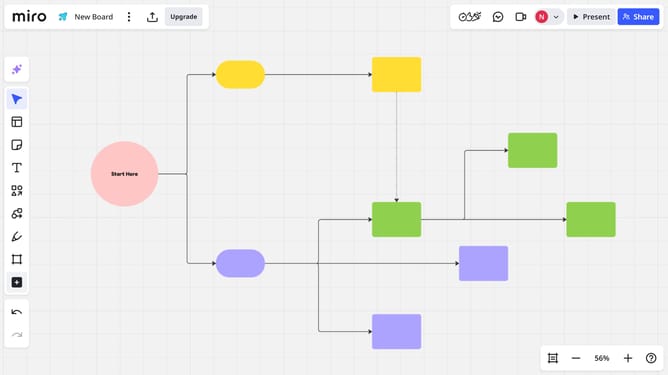
How to change the color of an org chart in a Miro board
Here is how to change the color of an org chart in a miro board
- First, open your board and click on the org chart whose color you want to change
- Next click on the "Fill color" icon in the toolbar that appears above the chart
- Then, a color palette will open for you to choose from
- Finally, select your preferred color from the palette to apply it to the org chart
Why should you change the color of an org chart in a Miro board
Miro is an intuitive, collaborative online whiteboard platform designed to enhance teamwork and creativity.
Changing the color of an org chart in a Miro board is a simple yet powerful feature. It allows for personalized visual customization, which aids in clearer communication and distinction.
By adapting the color scheme, users can spotlight specific departments or roles within an organization, making information easier to digest and visually engaging. This enhances team collaboration and understanding of organizational structures.
Last update