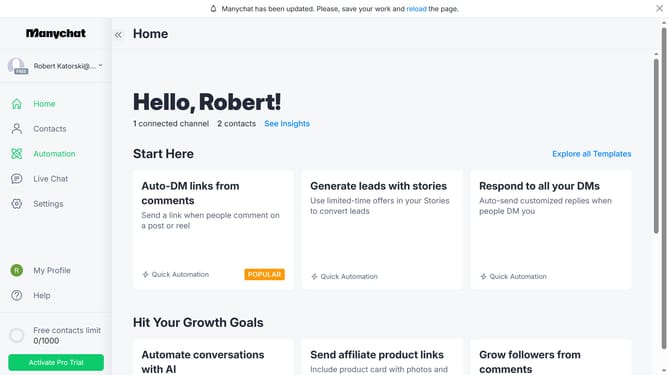
How to create a date user field in Manychat
Here is how to create a date user field in manychat
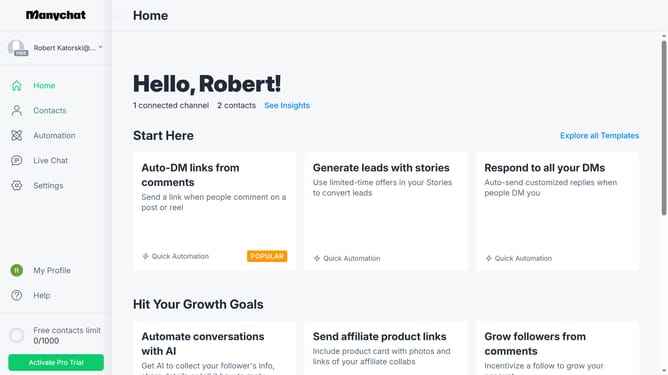
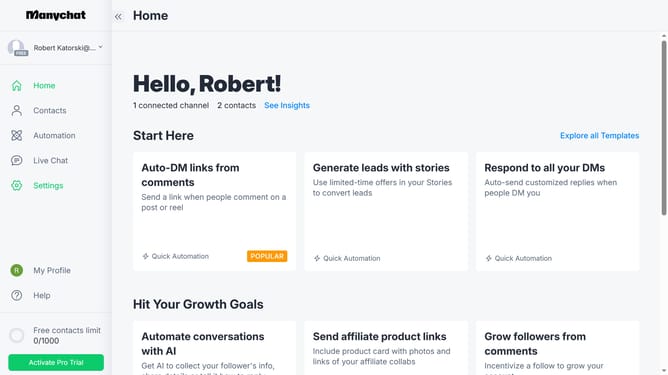
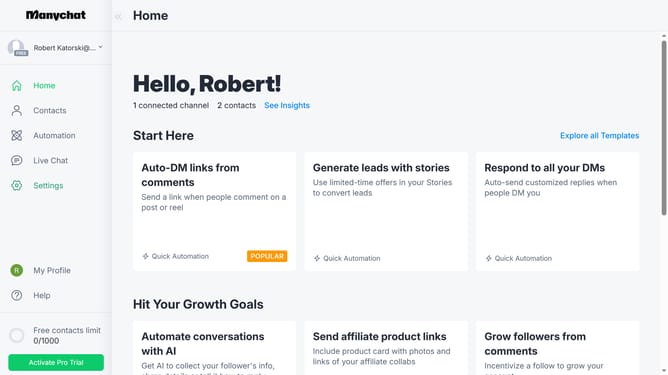
- First click on the "Settings" option in the left sidebar menu
- Scroll down in the general settings page
- In the Settings submenu, click on "Fields" under the Automation section
- Scroll up in the fields settings page
- Click on the "+ New User Field" button in the top right corner
- Click the "Type" dropdown options in the create new user field modal
- Select "Date" from the Type dropdown options
- Click on the name input text field and enter the desired name for your date user field
- Click on the "Folder" dropdown field
- Select the desired folder for your date user field from the Folder dropdown options
- Finally click on the "Create" button in the bottom right of the modal
Why should you create a date user field in Manychat
Manychat is a dynamic platform designed to enhance customer engagement through automated messaging.
Creating a date user field in Manychat allows businesses to record and utilize specific dates associated with their customers, such as birthdays or anniversaries.
This feature enhances personalized communication, making interactions more meaningful and timely.
The ability to tailor messages based on these dates can significantly boost user experience and lead to higher customer retention.
Last update