How to rename tags folder in Manychat
Here is how to rename tags folder in manychat
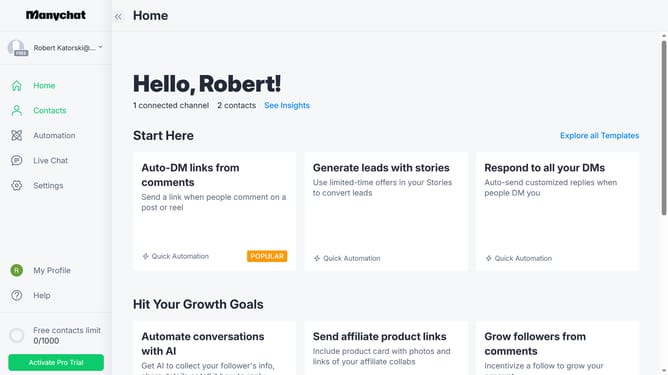
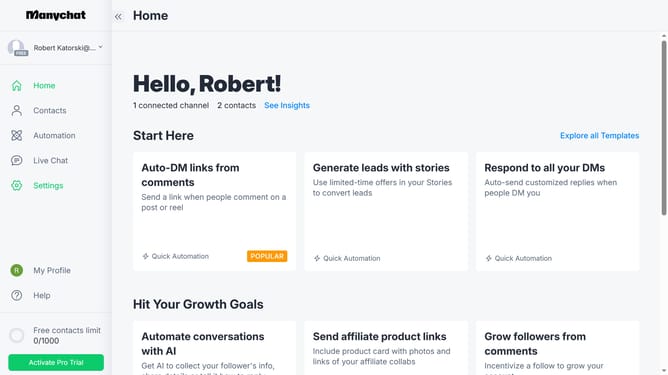
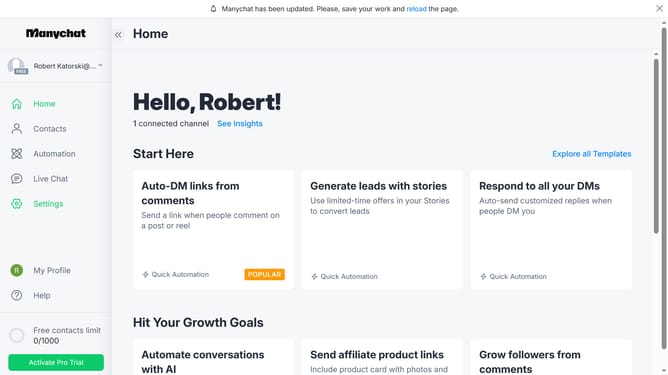
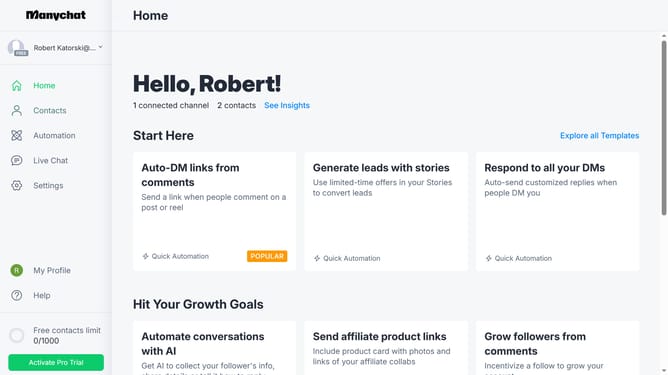
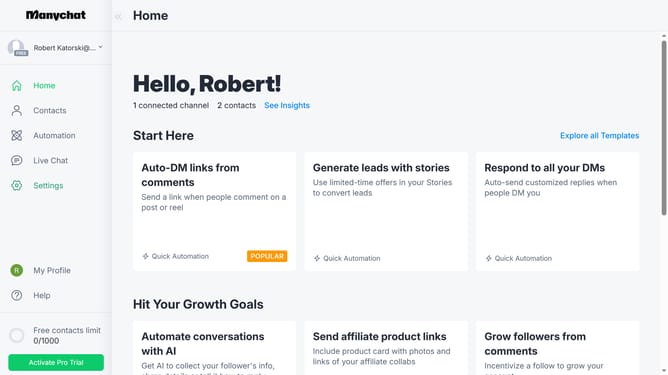
- First click on the "Settings" option in the left sidebar
- Next scroll down in general settings
- In the left sidebar settings menu, click on "Tags" under the Automation section
- Scroll up in the tags page until you see the tags folders
- Click on the settings icon (three dots) next to the folder you want to rename
- Click the "Rename" button in the dialog box
- Click on the text field containing the current name in the Rename Folder dialog and change it to your desired name
- Finally click the "Rename" button to finalize the renaming of the folder
Why should you rename tags folder in Manychat
Manychat is a dynamic tool designed to amplify customer engagement through automated chat experiences.
One of the key features in Manychat is the ability to rename tags folders, facilitating organization and clarity in managing your communication strategies.
By effectively renaming tags folders, users can categorize and streamline conversations, making it simpler to track interactions and refine targeting.
This functionality enhances operational efficiency, providing a more structured approach to handling customer data and improving overall communication strategies.
Last update