How to configure context window size for Cohere chat provider in n8n
Here is how to configure context window size for cohere chat provider in n8n
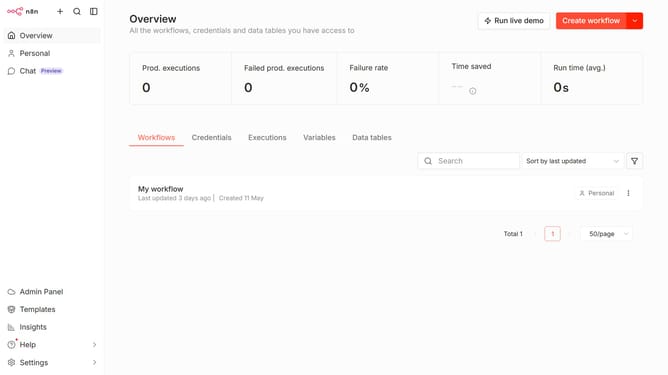
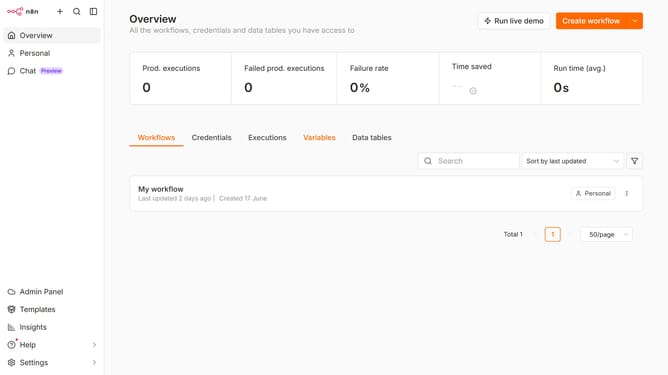
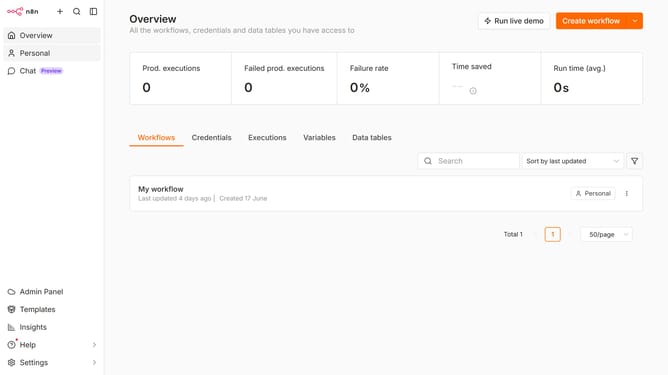
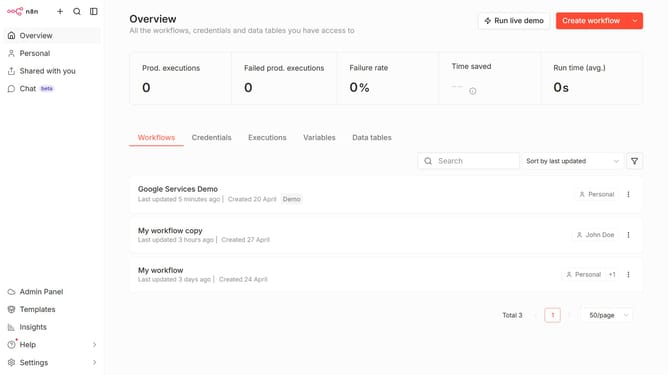
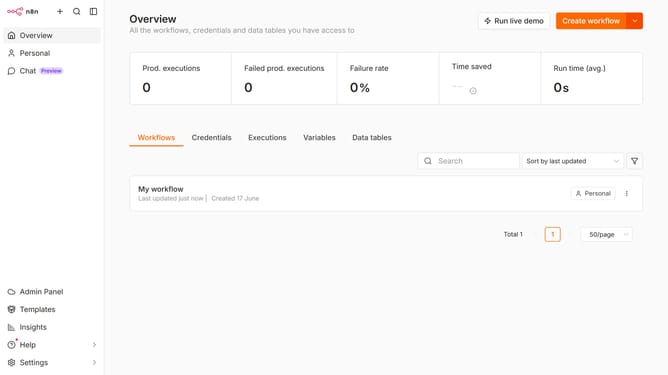
- First click on "Settings" in the left sidebar.
- Then click on "Chat Preview" in the left sidebar.
- Then click on the options icon (three dots) in the right panel.
- Then click on "Edit provider" button.
- Then change the value in the "Context window (messages)" field to the desired amount.
- Finally click on the "Confirm" button.
Why should you configure context window size for Cohere chat provider in n8n
n8n is an intuitive automation platform that connects different applications and services seamlessly.
Configuring the context window size for the Cohere chat provider in n8n enhances the overall conversation flow by allowing control over how much contextual information is processed. This feature enables better dialogue management, ensuring more accurate and meaningful interactions.
The adaptability of the context window size caters to varying needs, ultimately creating a more personalized user experience. Embracing such configuration leads to smarter, more effective automated conversations.
Last update