How to configure context window size for Anthropic chat provider in n8n
Here is how to configure context window size for anthropic chat provider in n8n
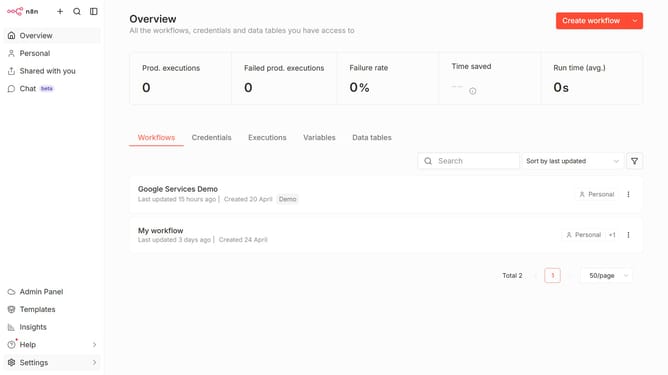
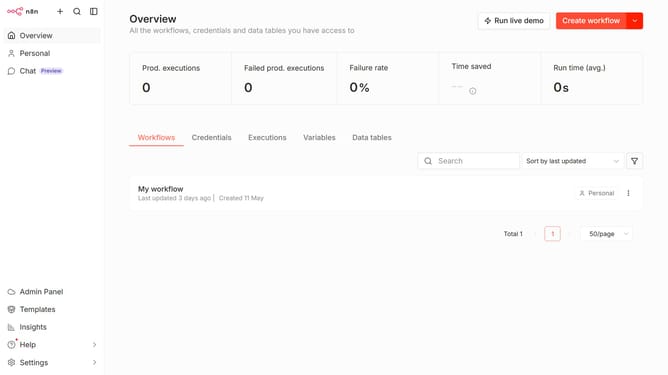
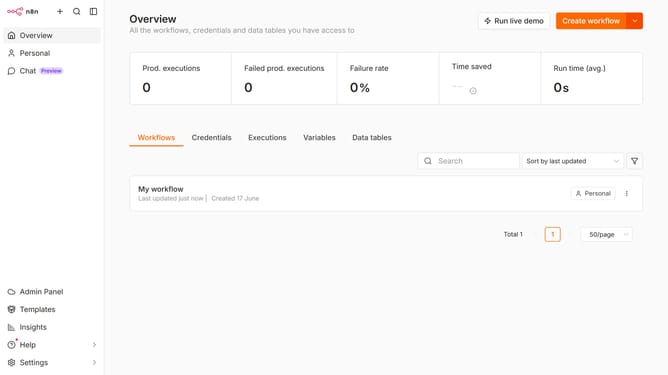
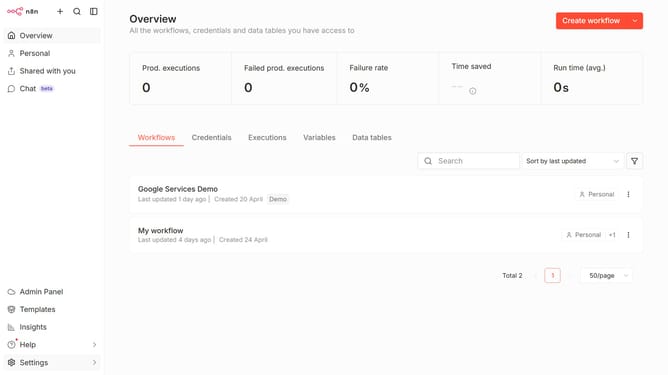
- First click on "Settings" in the left sidebar.
- Then click on "Chat" to open the chat settings.
- Next, click on the three dots menu for the provider you want to configure.
- In the dropdown menu, click on "Edit provider".
- Change the value in the "Context window (messages)" input to the desired amount.
- Finally, click on the "Confirm" button to save the changes.
Why should you configure context window size for Anthropic chat provider in n8n
n8n is a powerful workflow automation tool designed to connect different services seamlessly.
Configuring the context window size for the Anthropic chat provider in n8n enhances the chat's responsiveness and accuracy. By adjusting this feature, users can optimize how much conversational data is retained for context, ensuring interactions are meaningful and contextually relevant.
This tailored configuration boosts the efficiency of chat operations, providing a user-friendly experience that translates into smoother automated processes and improved communication flows. The flexibility and control n8n offers ensure that workflows are not just automated but also intelligently optimized.
Last update