How to configure context window size for Groq chat provider in n8n
Here is how to configure context window size for groq chat provider in n8n
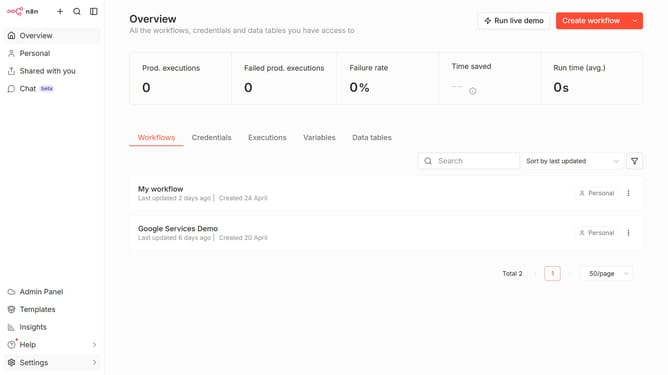
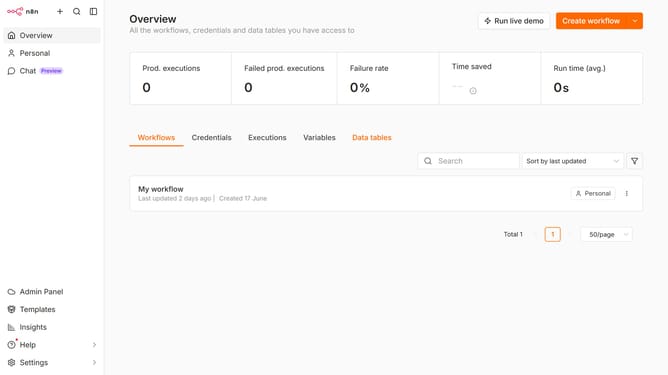
- First click on "Settings" in the left sidebar
- Then on the left sidebar, click on the "Chat" option
- Then click on the three vertical dots next to the item
- Then click on "Edit provider" to configure the settings
- In the "Context window (messages)" section, change the value to the desired amount
- Finally, click on the "Confirm" button to save the changes
Why should you configure context window size for Groq chat provider in n8n
n8n is a highly customizable workflow automation tool designed to enhance productivity and streamline processes.
Configuring the context window size for the Groq chat provider in n8n ensures a personalized and efficient conversation experience. Adjusting the size allows for more contextual data exchange, enhancing interaction dynamics.
By optimizing the context window size, users can achieve more relevant and accurate chat outcomes, crucial for maintaining effective communication.
Ultimately, this feature underlines n8n’s flexibility in catering to diverse automation needs.
Last update