How to change the watermark orientation to diagonal in DocuSign
Here is how to change the watermark orientation to diagonal in docusign
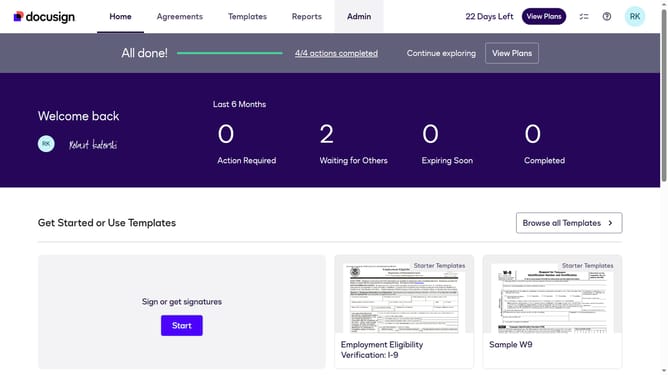
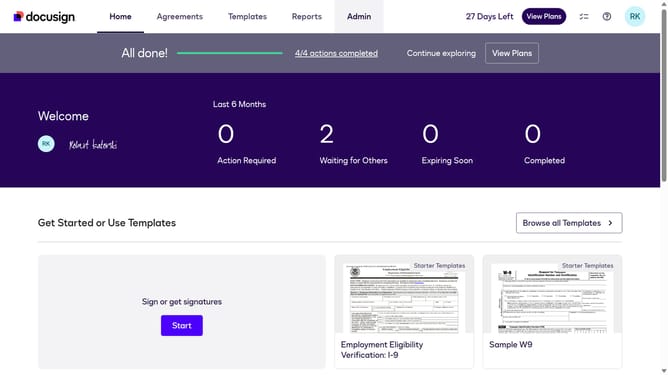
- First click on the "Admin" tab in the top navigation menu
- Then scroll down to view more options
- Next click on "Signing Settings" in the left sidebar under the "SIGNING AND SENDING" section
- Then click on the "Watermark Configuration" button in the Signing Experience section
- Next click on the "Choose an orientation of the watermark" dropdown and select "Diagonal"
- Then scroll down the page to view additional watermark options
- Finally click on the "Save Changes" button at the bottom of the page
Why should you change the watermark orientation to diagonal in DocuSign
DocuSign is a highly efficient digital transaction management platform designed to facilitate electronic signatures seamlessly.
One noteworthy feature is the ability to modify the watermark orientation to diagonal, enhancing document aesthetics and professionalism.
Diagonal watermarks provide a visual advantage, improving document security by making it more difficult for unauthorized alterations while maintaining an unobtrusive presence.
By adapting the watermark to a diagonal position, users can ensure that their documents are uniquely marked without obstructing crucial content.
Last update