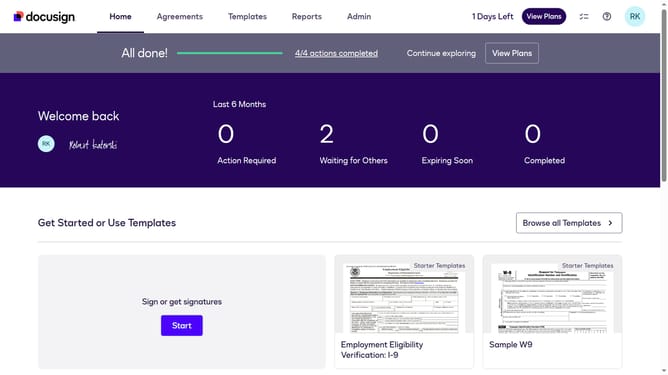
How to deliver self-signed email notifications as a PDF in DocuSign
Here is how to deliver self-signed email notifications as a pdf in docusign
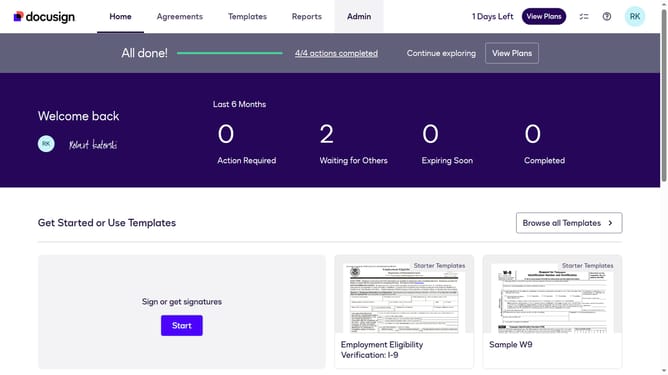
- First click on the "Admin" tab in the top navigation menu
- Then scroll down the page to view more admin settings options
- Next click on "Signing Settings" in the left sidebar under the "SIGNING AND SENDING" section
- Then scroll down the page to view the "Envelope Delivery" section
- Next click on the "Deliver self-signed email notifications by" dropdown menu and select "PDF" option
- Finally click on the "Save Changes" button to apply the settings
Why should you deliver self-signed email notifications as a PDF in DocuSign
DocuSign enables seamless and secure electronic signatures for a digital world.
The feature of delivering self-signed email notifications as a PDF in DocuSign enhances document management efficiency.
This functionality allows users to maintain a record of emails, ensuring compliance and streamlined workflows.
By converting notifications into PDFs, users benefit from improved accessibility and preservation of legal documentation, supporting both personal and professional demands.
Last update