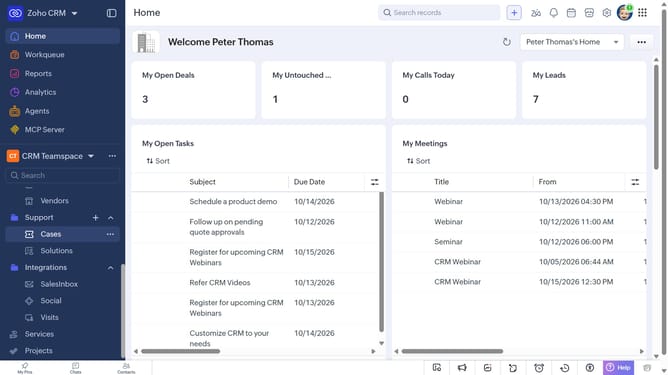
How to change the theme color to Royal Brown on Zoho CRM
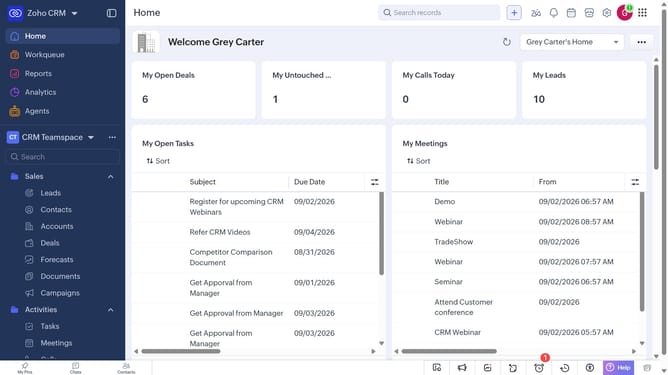
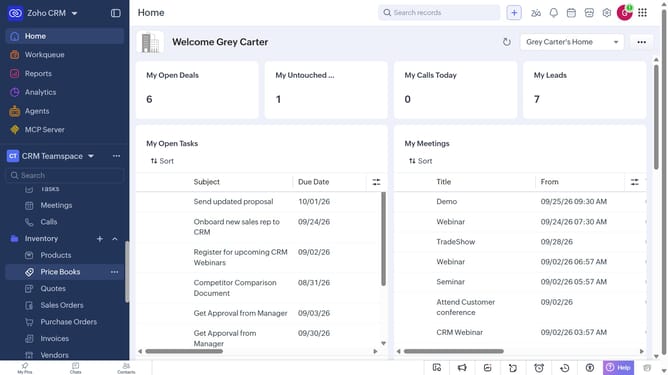
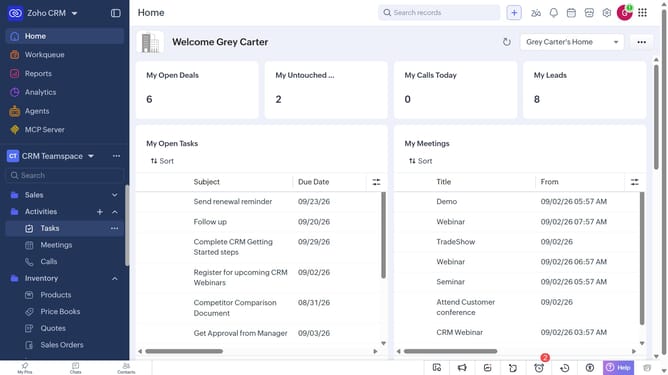
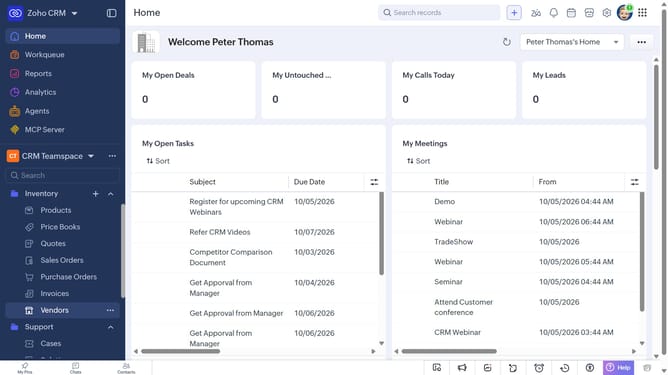
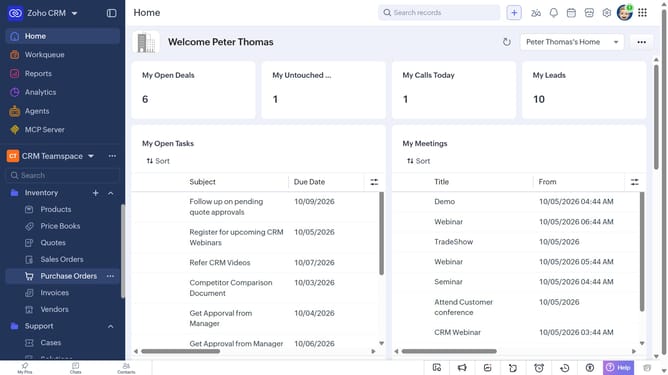
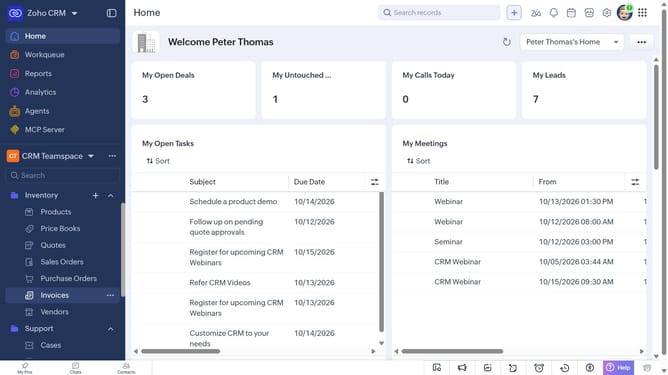
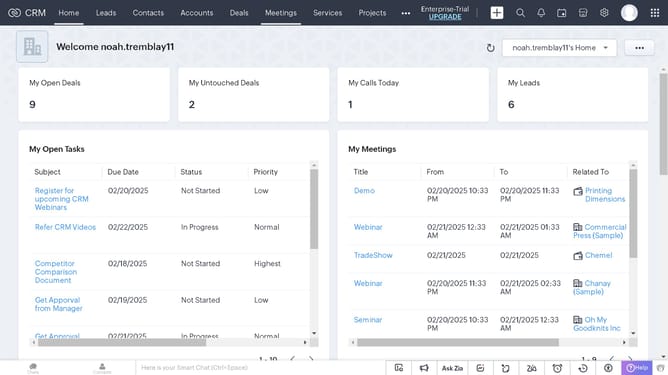
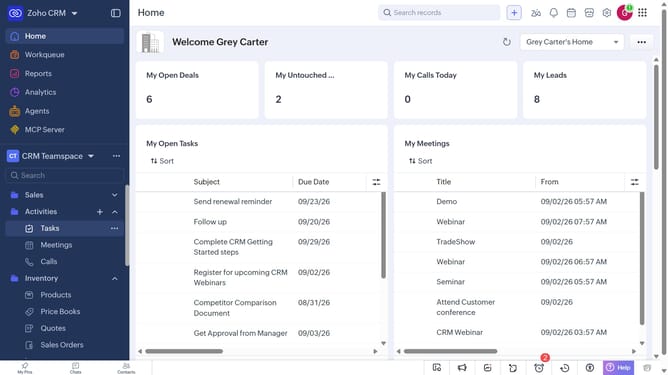
Here is how to change the theme color to royal brown on zoho crm
- First click on your avatar profile in the top right corner
- Next locate the "Themes" section
- Then, select your preferred theme option (Dark or Lite)
- Finally, select "Royal Brown" from the theme color options
Why should you How to change the theme color to Royal Brown on Zoho CRM
Zoho CRM is a flexible and powerful customer relationship management tool designed to streamline business processes and enhance client interactions.
One of the aesthetically pleasing customization options available is changing the theme color to Royal Brown. This subtle yet elegant shade can lend a sophisticated touch to your user interface, making your workspace more visually appealing.
Opting for Royal Brown not only enhances the visual appeal but also promotes a warm and inviting environment, potentially improving focus and productivity. Adopting a personalized theme color reflects your brand's identity, fostering a cohesive team atmosphere.
Last update