How to change the password for a shared view link in Airtable
Here is how to change the password for a shared view link in airtable
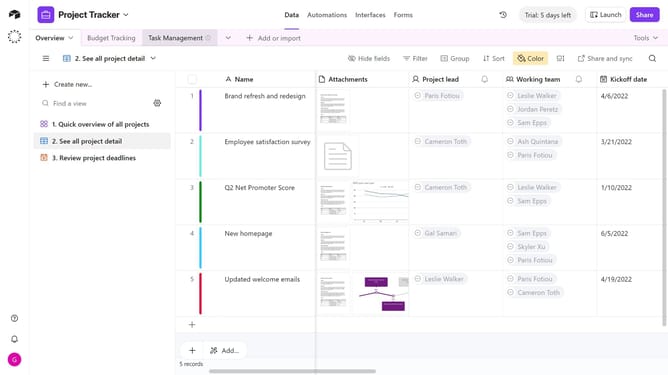
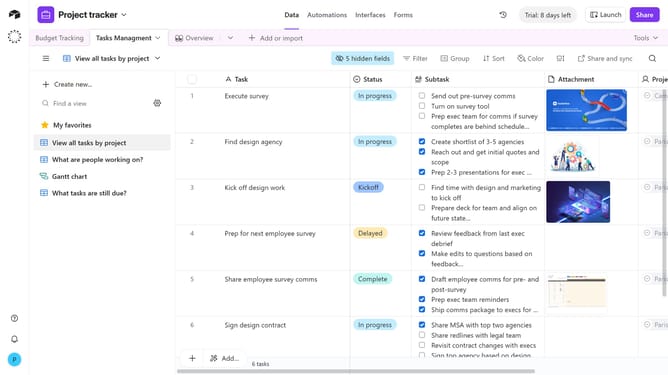
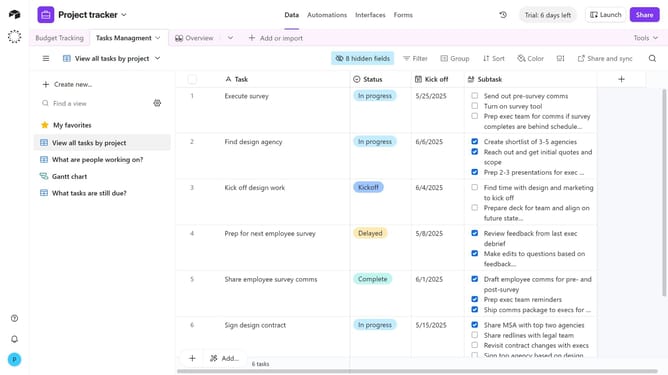
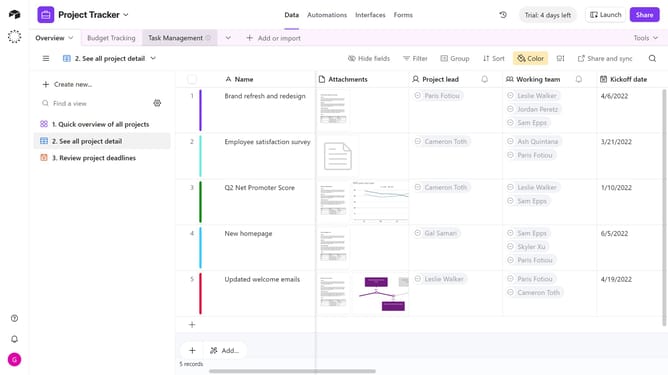
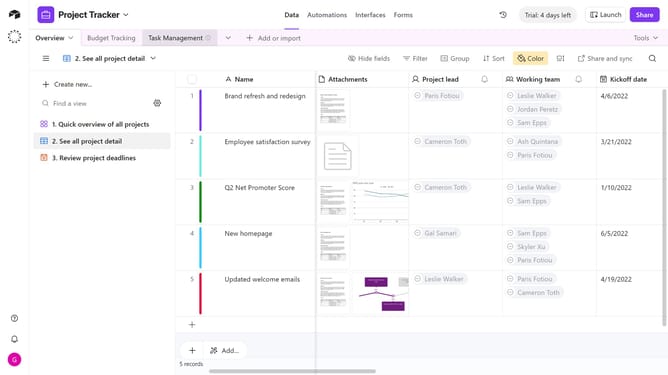
- First, navigate to the base and open the table containing the shared view
- Open the view sidebar and select the shared view you want to update
- Next click on "Share and sync" button in the top toolbar
- In the dropdown menu, click on "Link settings" option
- Locate the "Access is password-protected" option
- Then click on the "Edit" button next to it
- Enter the new password in the "Password" field
- Finally click the "Change password" button to confirm the new password
- The shared view is now protected with the new password
Why should you change the password for a shared view link in Airtable
Airtable is a dynamic platform aimed at blending the simplicity of a spreadsheet with the functionality of a database.
Changing the password for a shared view link in Airtable is a crucial feature that enhances the security of your shared content. This feature allows users to maintain control over who accesses sensitive information by periodically updating the access credentials.
By customizing access settings, teams can ensure data integrity while allowing collaboration within a safe environment. This proactive approach boosts confidence in shared data management.
Last update