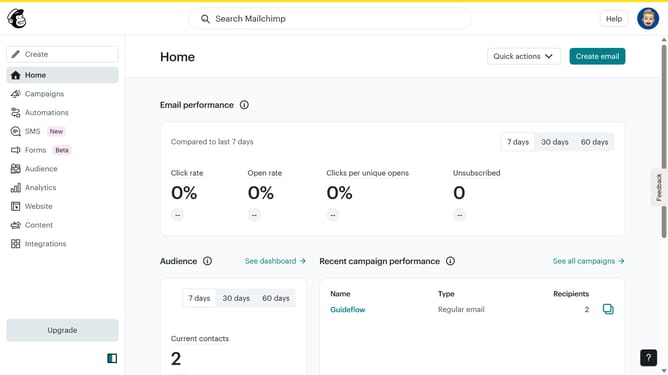
How to change the button color in an email campaign in Mailchimp
Here is how to change the button color in an email campaign in mailchimp
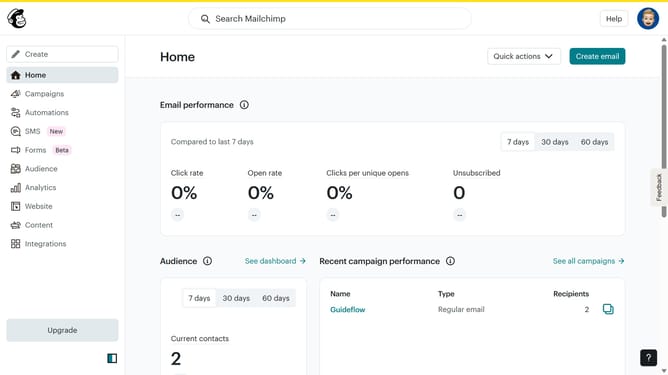
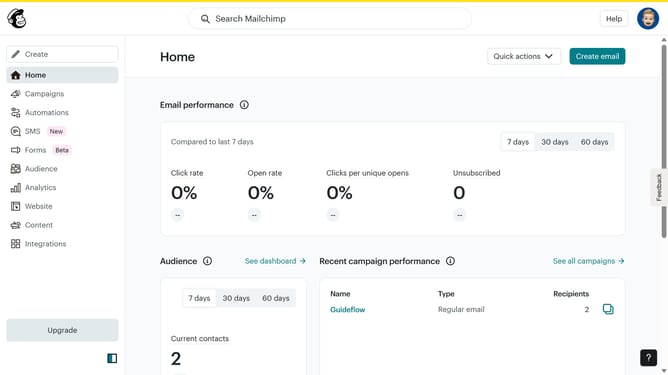
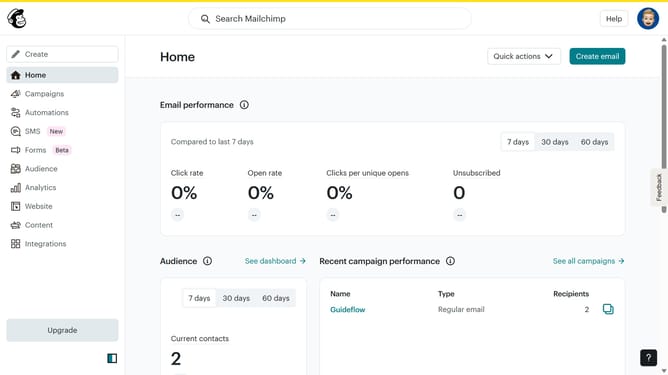
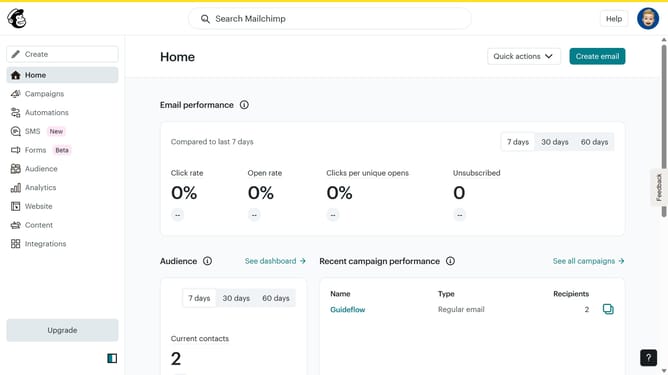
- First click on "Home" in the left sidebar
- Then click on "Edit" button in the right corner of the campaign details
- Click on the "Edit design" button at the bottom right of the screen
- In the left sidebar, click on "Styles"
- In the "Styles" menu, click on the "Button" dropdown
- Under the "Button" section, click on the "Colors" option
- Select a color from the available color swatches
- Finally click on the "Button" option in the left sidebar again to apply the changes
Why should you change the button color in an email campaign in Mailchimp
Mailchimp is a leading platform for crafting and managing effective email campaigns with ease.
Changing the button color in your Mailchimp email campaign allows you to align your design with your brand's aesthetics, creating a cohesive visual experience for your audience.
This feature enhances engagement by making your call-to-action buttons more visually appealing and noticeable.
Personalized color choices can significantly improve click rates and reinforce brand identity, ultimately driving better marketing results.
Last update