How to change the background color of an email in Mailchimp
Here is how to change the background color of an email in mailchimp
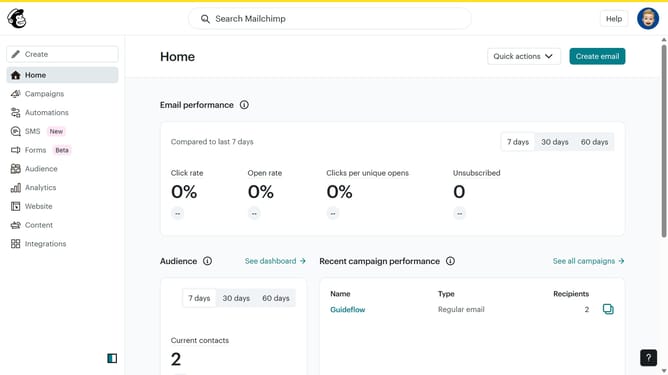
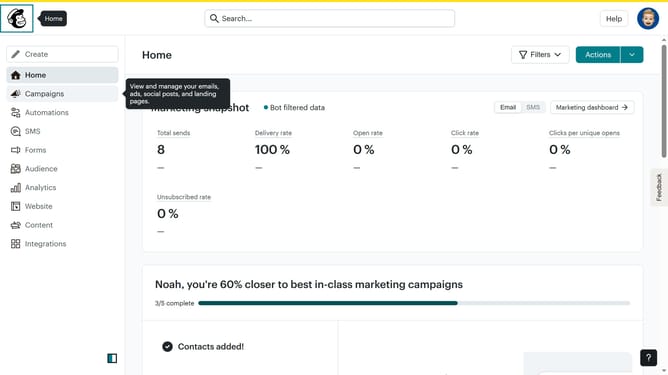
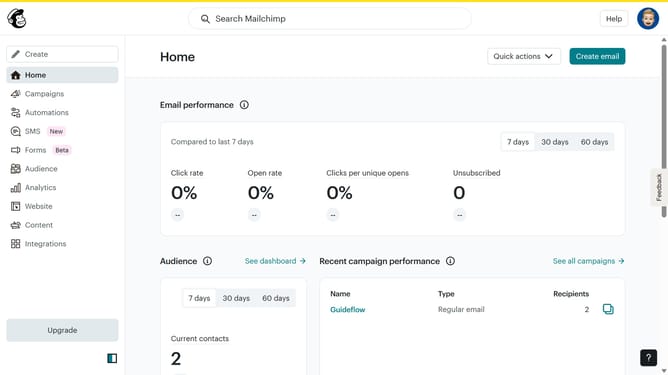
- First select "Home" in the left sidebar
- Then click on the "Edit" button next to the campaign that you want to manage
- First click on the "Edit design" button
- Then click on "Styles" tab in the left sidebar
- Next click on "Background" in the "Email Design" section on the left
- Then click on the "Background color" swatch to open the color picker
- Next choose a color from the color spectrum
- Then select a shade of the chosen color
- Finally click on the "Save and exit" button
Why should you change the background color of an email in Mailchimp
Mailchimp is a leading email marketing platform designed to help businesses communicate effectively with their audience.
Changing the background color of an email in Mailchimp allows you to create a visually appealing and cohesive brand experience. This feature helps your emails stand out in a crowded inbox, catching the recipient’s eye immediately.
By customizing the background color, you can enhance readability, reinforce brand consistency, and set the mood or theme for your communication. This simple change can make a significant impact on engagement and response rates.
Last update