SurveyMonkey
SurveyMonkey is an online survey and feedback collection platform for customer insights.
Website
Industry
Marketing
Share this article:

How to change survey colors in SurveyMonkey

Here is how to change survey colors in surveymonkey

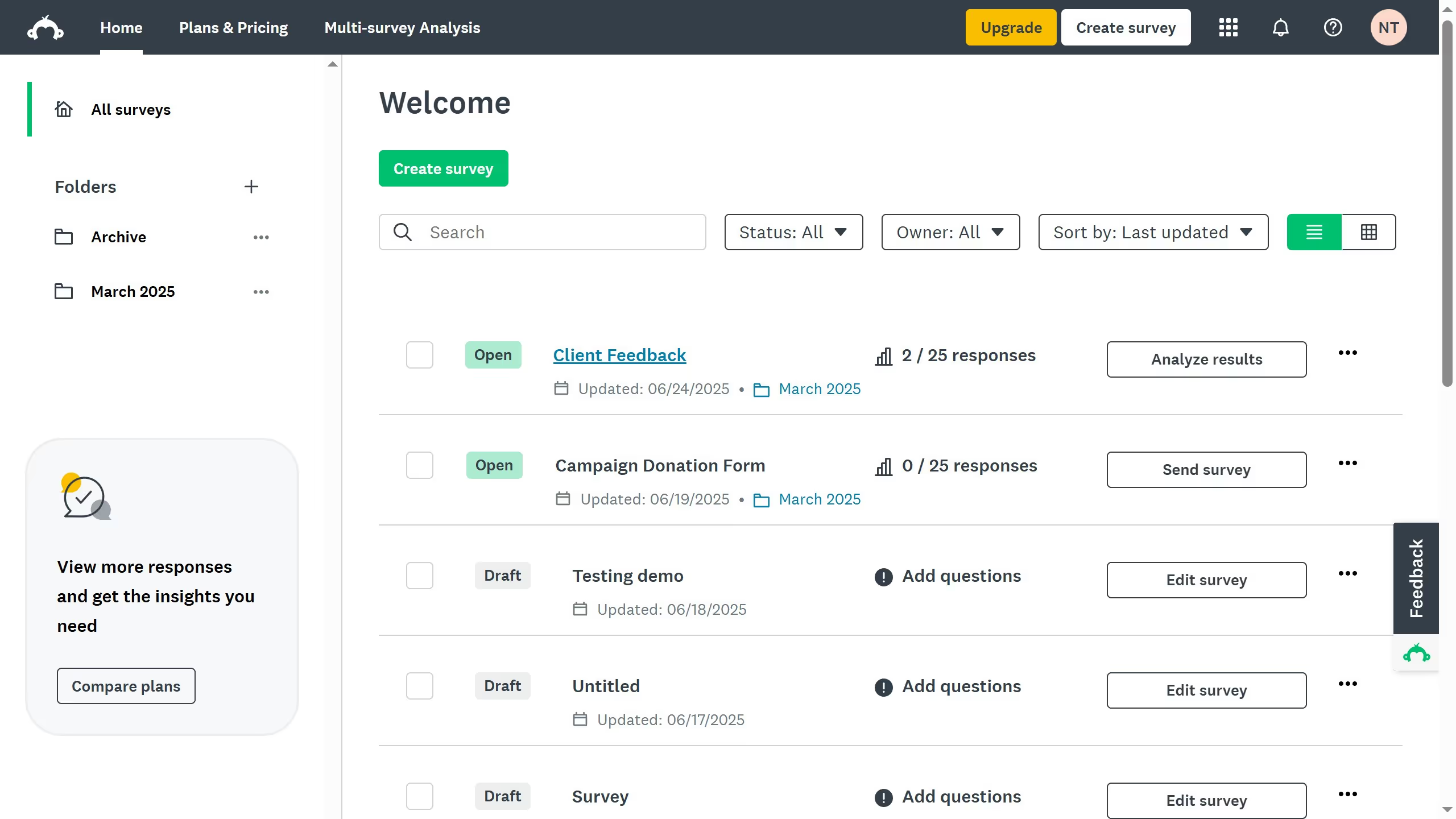
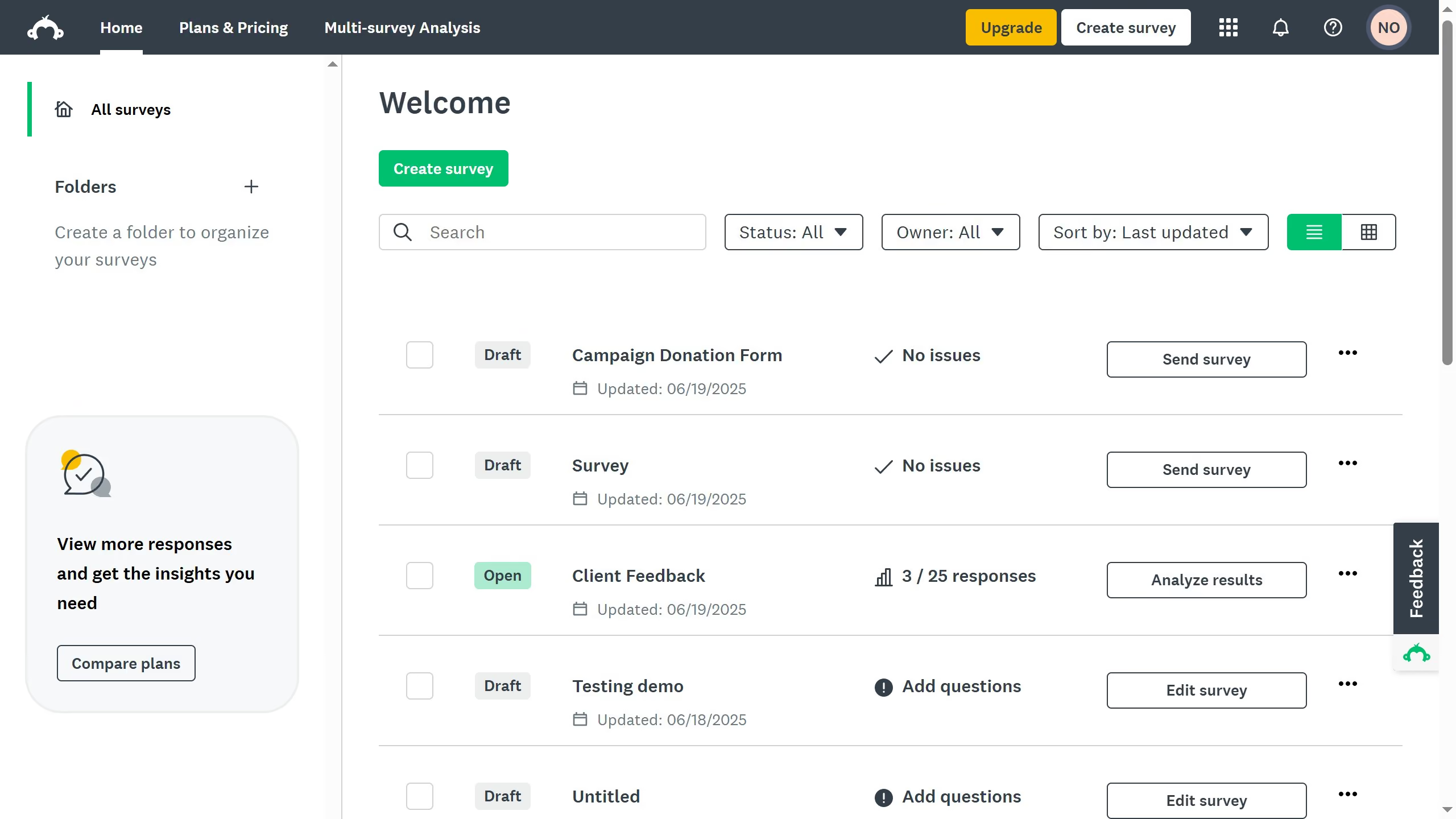
  1. On your SurveyMonkey dashboard, choose the survey you want to edit from your list
  2. Then click on "DESIGN SURVEY" tab in the survey navigation menu
  3. Click the "Style" tab
  4. Click "Themes" on the left-hand panel
  5. Choose a theme or click "Customize" to edit colors

Create your own interactive guide with Guideflow

Why should you change survey colors in SurveyMonkey

SurveyMonkey is a versatile tool designed to simplify the creation and distribution of surveys for any purpose.

Customizing survey colors in SurveyMonkey is an intuitive feature that enhances the engagement of your audience. This flexibility allows users to maintain brand consistency by incorporating their company's colors, contributing to a cohesive brand image.

Personalizing survey colors not only makes surveys visually appealing but also elevates the overall experience for respondents. This can lead to higher response rates and more accurate data collection as participants feel more engaged.


Last update
June 23, 2026
Cursor MariaA cursor points to a button labeled "James."

Create your first demo in less than 30 seconds.