SurveyMonkey
SurveyMonkey is an online survey and feedback collection platform for customer insights.
Website
Industry
Marketing
Share this article:

How to connect SurveyMonkey with Airtable

Here is how to connect surveymonkey with airtable

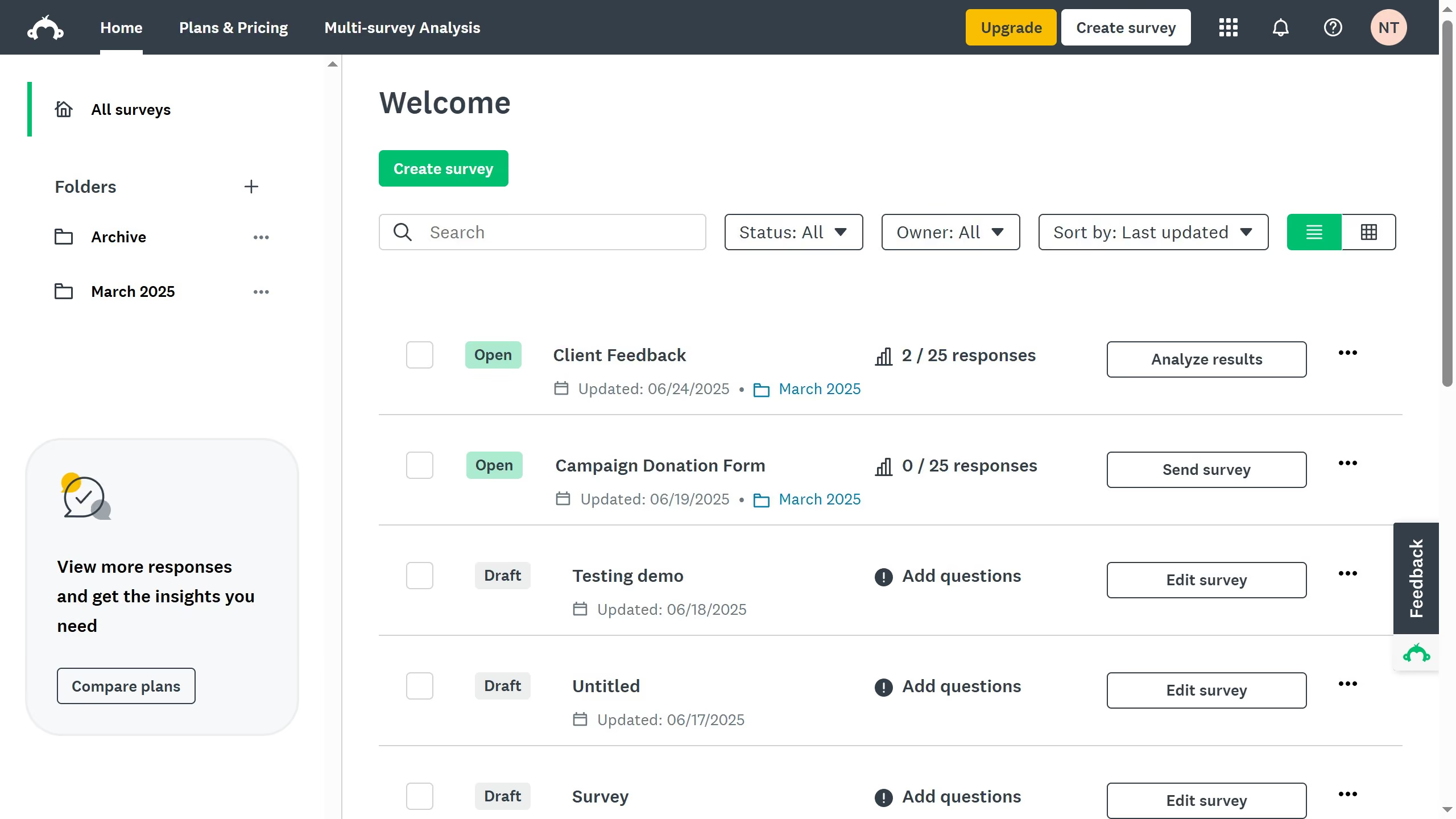
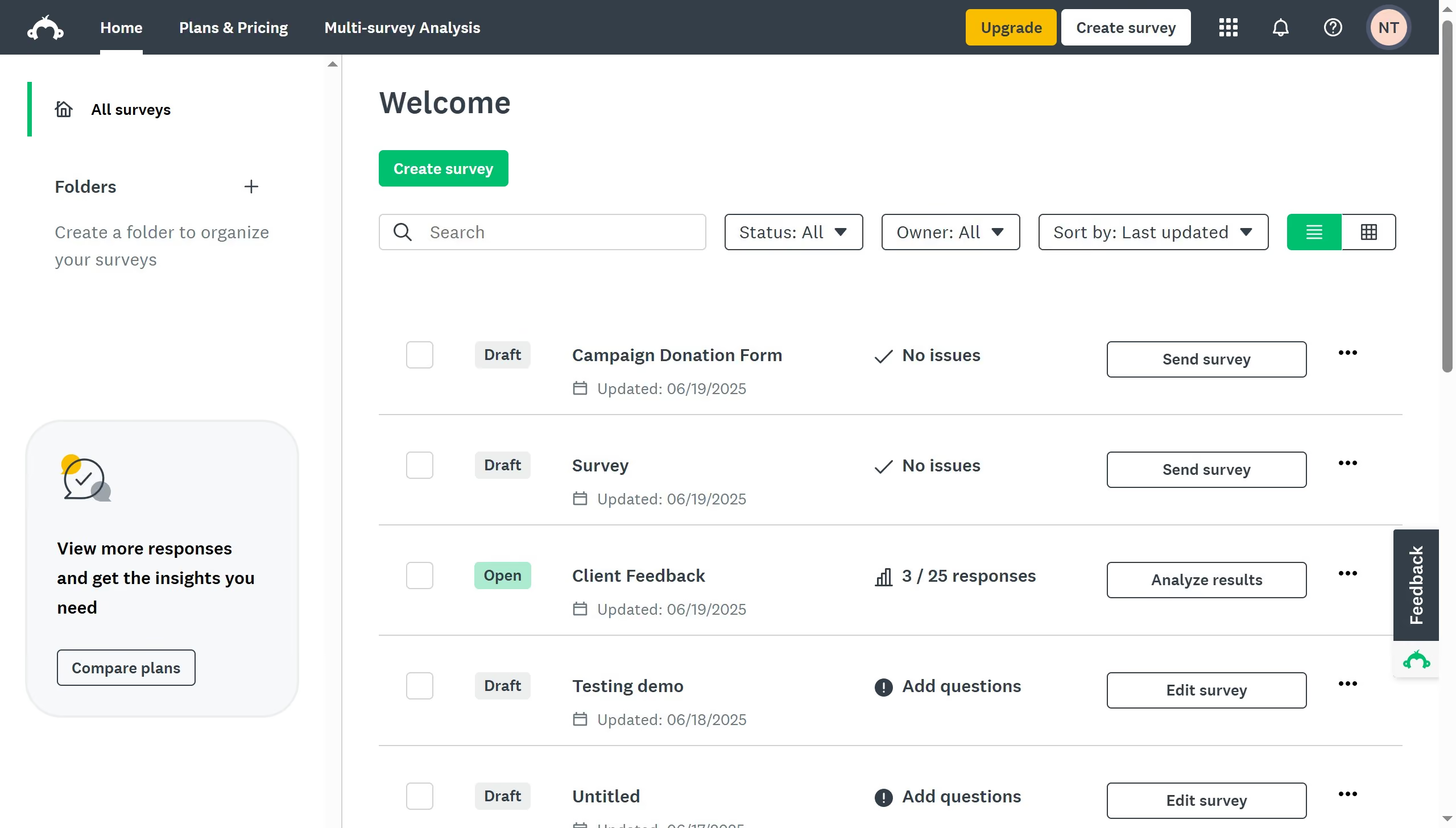
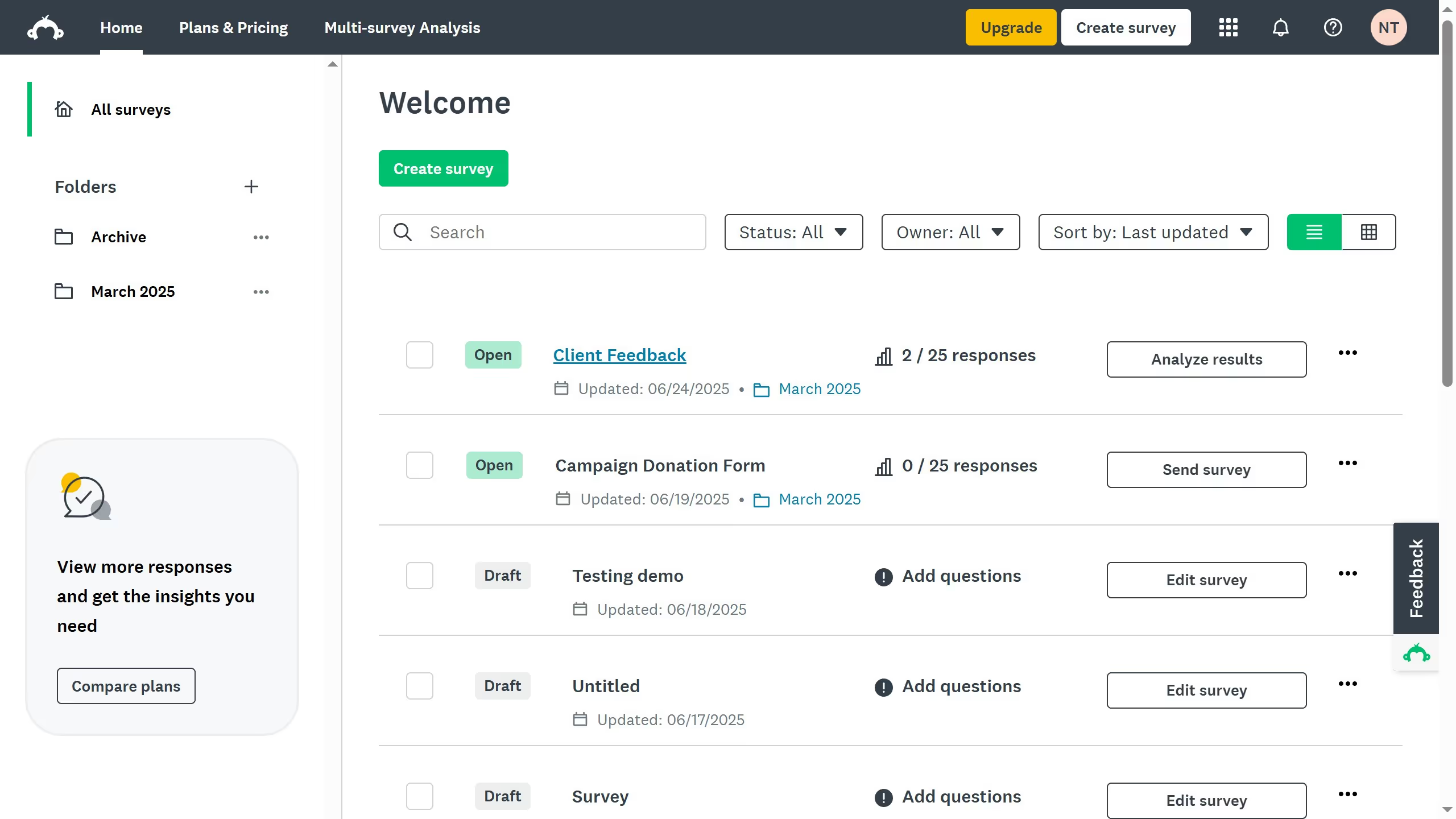
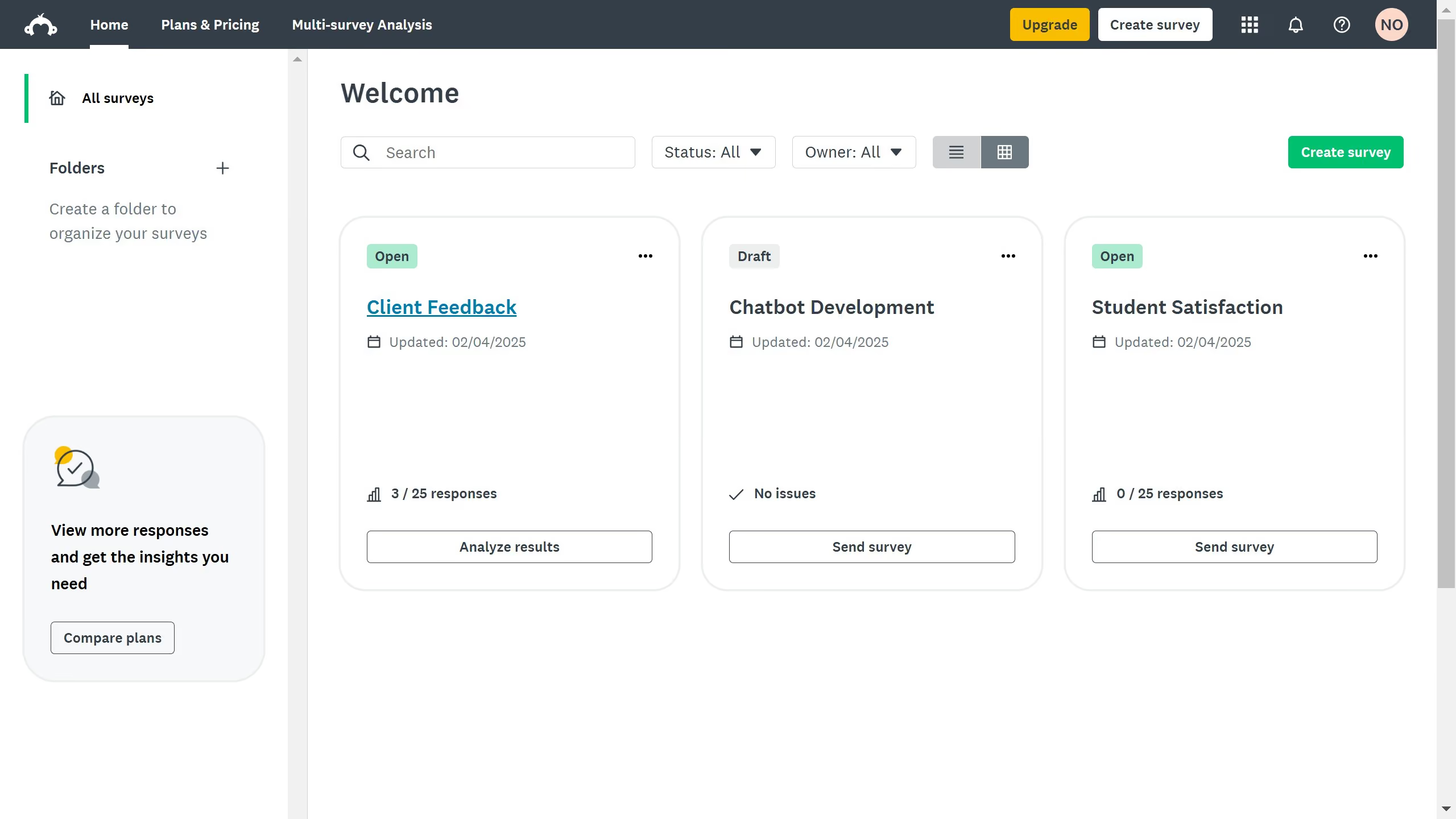
  1. First log into your Zapier account and click on "Create," then choose "Zaps" to begin
  2. Next, click on "Trigger" to begin the setup process
  3. Search for "SurveyMonkey" and select it as your Trigger App
  4. Choose the trigger event that fits your needs for the integration
  5. Then sign into your SurveyMonkey account and click "Continue"
  6. Fill in the required fields
  7. Click on "Test trigger" to make sure the trigger is working
  8. Now, search for "Airtable" and select it as your Action App
  9. Next sign in to your Airtable account
  10. Choose an Action event
  11. Then click "Continue" to proceed
  12. Fill in and customize the required fields as prompted
  13. Click the "Test step" button to verify the action
  14. Finally, click "Publish" to complete the integration
  15. A confirmation message will appear saying that Zap has been published, confirming that SurveyMonkey and Airtable are now connected

Create your own interactive guide with Guideflow

Why should you connect SurveyMonkey with Airtable

SurveyMonkey is a powerful tool designed to create intuitive and comprehensive surveys for gathering actionable insights.

By connecting SurveyMonkey with Airtable, you unlock seamless data management and enhanced flexibility in organizing your survey responses. This integration allows you to effortlessly transition data collected from surveys into a structured, dynamic database.

Using this connection, you can streamline your workflow, gain clearer data visibility, and enhance collaboration across teams. All this leads to faster, more informed decision-making and the ability to act swiftly on survey feedback.


Last update
June 23, 2026
Cursor MariaA cursor points to a button labeled "James."

Create your first demo in less than 30 seconds.