Mural
Mural is a visual collaboration platform for brainstorming, planning, and running remote workshops on a shared canvas.
Website
Industry
Design
Share this article:

How to change border style in the freeform area in Mural

Here is how to change border style in the freeform area in mural

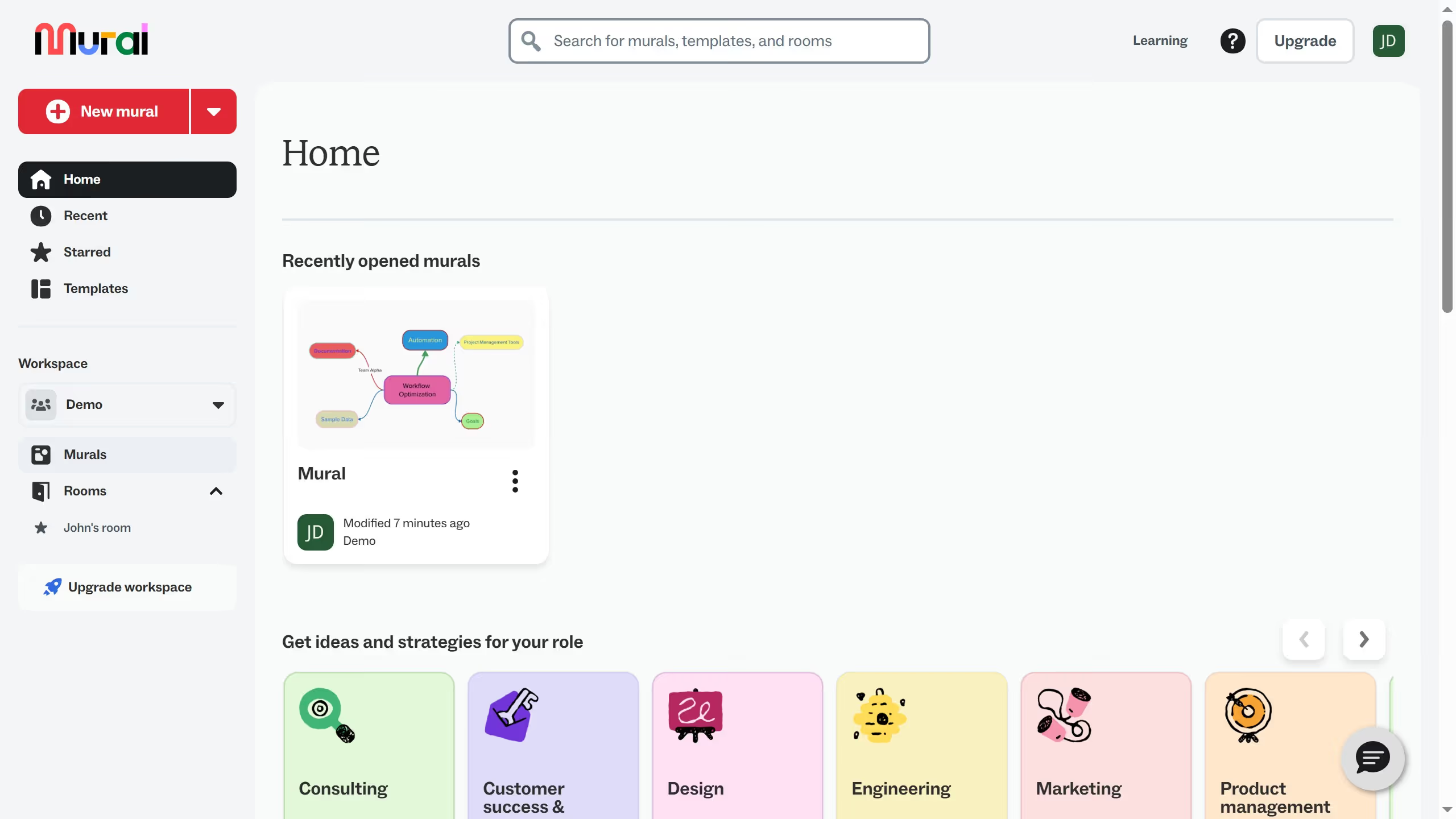
  1. First click on the "Murals" section in the left sidebar
  2. Then click on the mural that you want to manage to open it
  3. Next click on the border of the freeform in the canvas to select it
  4. Finally click on the "Dashed border" button in the formatting toolbar

Create your own interactive guide with Guideflow

Why should you change border style in the freeform area in Mural

Mural is an intuitive digital workspace designed to foster creativity and collaboration.

In the freeform area, Mural allows users to change border styles, offering a personalized touch to their projects. This customization feature helps in visually categorizing ideas or separating different sections, making the collaborative process more organized and aesthetically pleasing.

Utilizing the border style change enhances clarity and focus. It benefits teams by enabling them to create visually distinct sections, ensuring every idea stands out and is easily accessible.

Last update
March 13, 2026
Cursor MariaA cursor points to a button labeled "James."

Create your first demo in less than 30 seconds.