Mural
Mural is a visual collaboration platform for brainstorming, planning, and running remote workshops on a shared canvas.
Website
Industry
Design
Share this article:

How to enable sticky notes only for voting in Mural

Here is how to enable sticky notes only for voting in mural

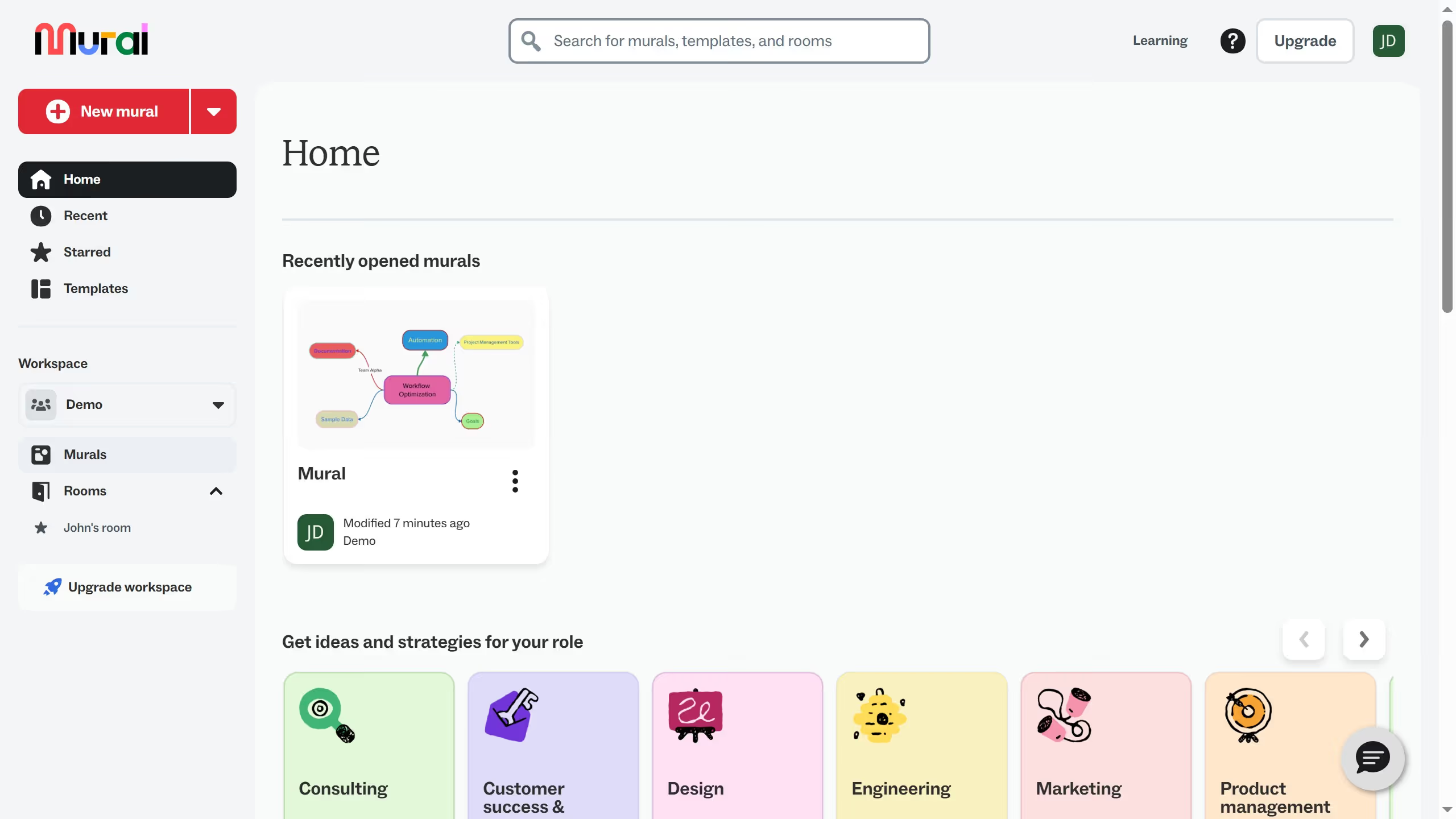
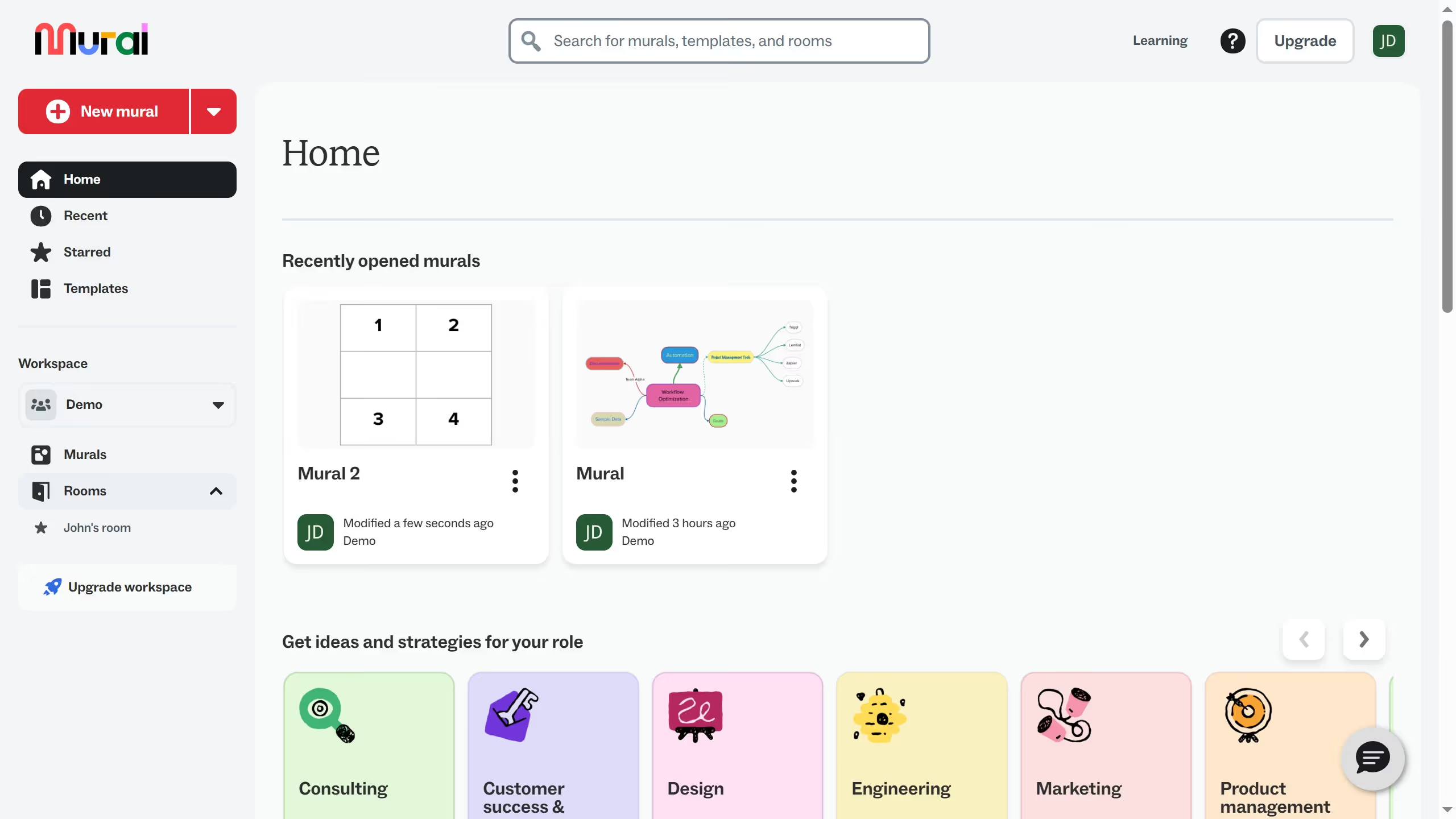
  1. First click on "Murals" item in the left sidebar
  2. Then click on the mural that you want to manage to open it
  3. Next click on the "Facilitate" button in the top toolbar
  4. Then click on the "Voting" option in the facilitation menu
  5. Next click on the "Start voting session" option from the voting submenu
  6. Then click on the "Name of session" text field and enter the session name
  7. Next click on the "Clear selection" link to deselect all voting options
  8. Then click on the "Sticky notes" checkbox to select it as a voting option
  9. Next click on the "Start" button to initiate the voting session
  10. Finally click on the "Begin voting" button in the voting session confirmation dialog

Create your own interactive guide with Guideflow

Why should you enable sticky notes only for voting in Mural

Mural transforms teamwork by providing an intuitive digital workspace designed to enhance collaboration and creativity.

Enabling sticky notes only for voting allows participants to prioritize ideas efficiently, directing focus where it's needed most. This function fosters an organized approach to decision-making, ensuring that voices are heard equally during brainstorming sessions.

By focusing on voting-specific sticky notes, teams can streamline their thought processes, easily discern popular concepts, and move projects forward with clarity and purpose. The result is a collaborative environment where every idea gets evaluated and the best ones naturally rise to the top.

Last update
March 13, 2026
Cursor MariaA cursor points to a button labeled "James."

Create your first demo in less than 30 seconds.