How to change background color in Mailchimp templates
Here is how to change background color in mailchimp templates
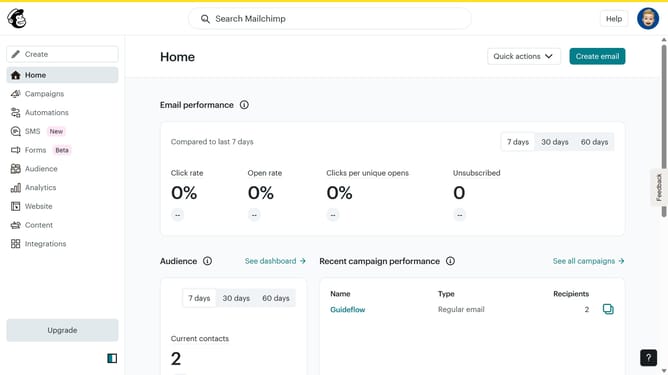
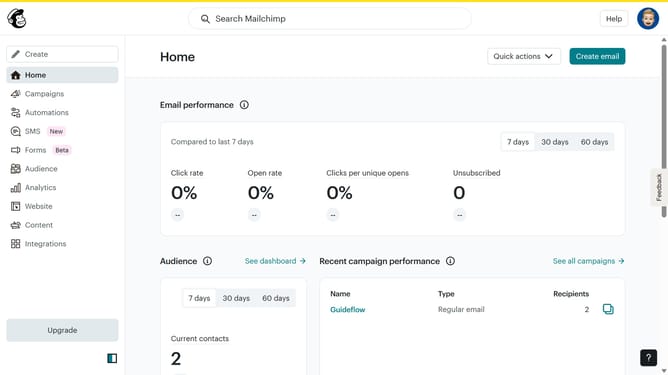
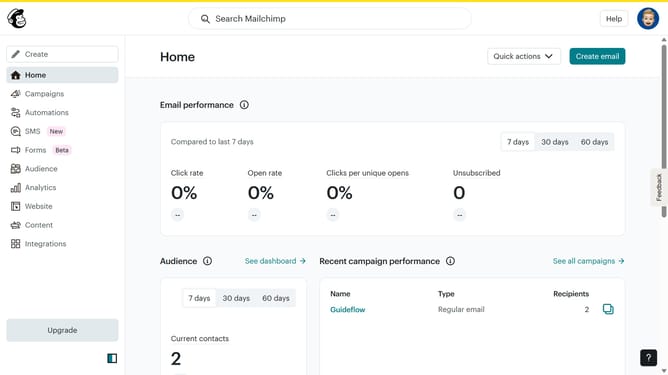
- First, click on the "Create" button in the top navigation bar
- Click on the "Design Email" button under the Regular email section in the main content area
- Click on the "Design email" button in the Content section of the email setup form
- Click the "Apply" button in the template selection model
- Click the "Styles" button in the left sidebar menu
- Click on the "Email" dropdown in the Styles panel
- Click on the background color selector in the Email Styles panel
- Pick your favorite background color, and it will be reflected in your email canvas
- Click on the "Done" button to close the color picker
- Click on the "Save and exit" button in the top right corner of the editor
Why should you change background color in Mailchimp templates
Mailchimp is a powerful marketing automation platform that helps businesses of all sizes connect with their audiences through email marketing.
Changing the background color in Mailchimp templates is a simple yet impactful way to ensure your email campaigns stand out and resonate with your brand identity.
By customizing the background color, you can enhance the visual appeal of your messages and maintain consistency across marketing materials, helping to capture attention and increase engagement with your content.
Tailoring your email's aesthetic can also evoke the desired emotional response, making your communication more effective and memorable.
Last update