How to assign an admin to a group in Calendly
Here is how to assign an admin to a group in calendly
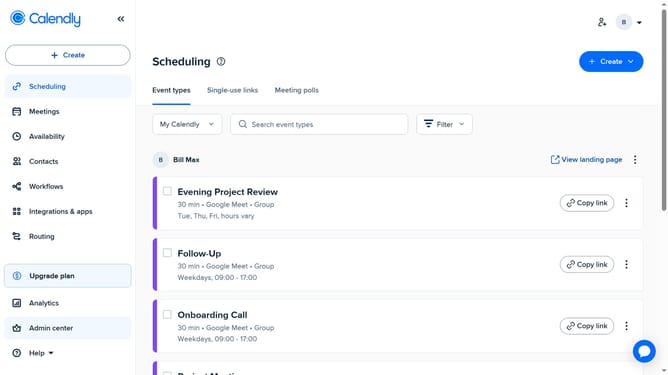
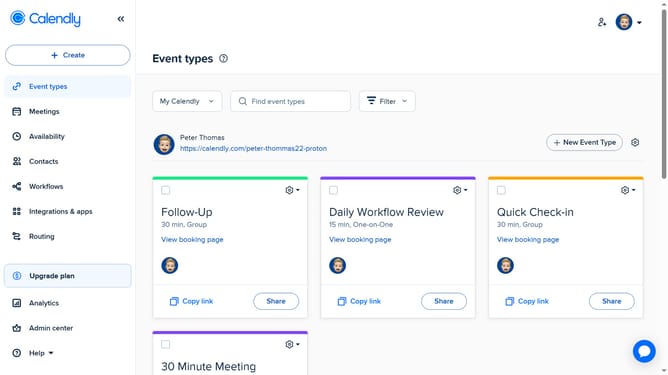
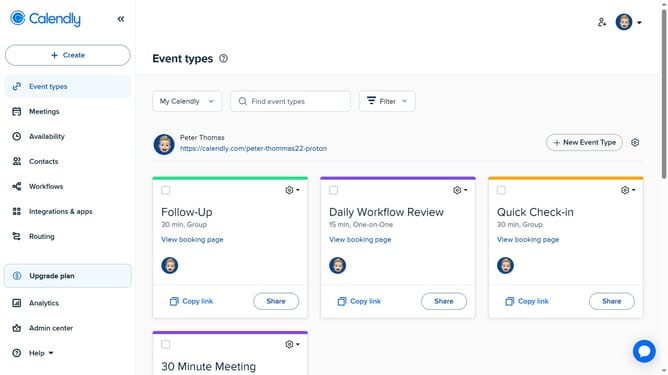
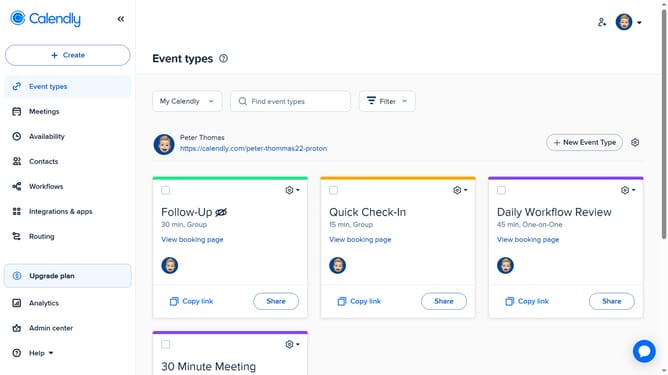
- First click on "Admin center" in the left sidebar menu
- Next click on "Groups" in the organization settings section of the sidebar
- Select the group where you want to assign an admin
- Then click the "Assign group admins" button in the top right corner
- In the search field, type the name or email of the member you want to assign as admin
- Another option is to locate the the member you want to assign as admin in the list
- Then click the three dots menu button next to it
- Next click "Assign as group admin" option in the dropdown menu
- Finally click on the "Assign" button to confirm
- The selected member is now the group admin
Why should you assign an admin to a group in Calendly
Calendly streamlines scheduling by simplifying appointment bookings between teams and clients.
Assigning an admin to a group in Calendly enhances organizational efficiency by distributing responsibilities. This feature ensures seamless collaboration and management within a team, making it easier to handle scheduling conflicts.
Utilizing this feature fosters accountability and allows for quicker decision-making processes, improving both team productivity and client satisfaction.
Last update