How to add trusted links in Intercom
Here is how to add trusted links in intercom
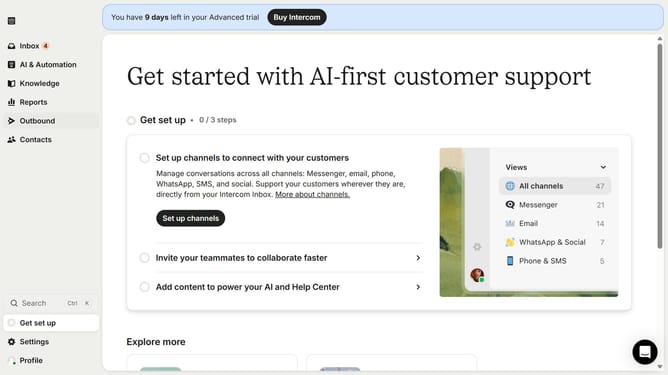
- First click on the "Settings" option in the left sidebar
- Then click on "Workspace" section in the settings menu
- Next click on "Security" option under the Workspace section
- Click on "Links" option in the Security settings page
- Click on "Add policy" button in the Trusted and blocked links section
- Click the dropdown in the Add policy modal
- Click on "URL" option from the dropdown menu
- Enter the URL in the URL input field
- Select "Trusted" radio button for marking the URL policy
- Finally click on "Save policy" button to add the new URL policy
Why should you add trusted links in Intercom
Intercom is a powerful platform designed to revolutionize customer communication.
Adding trusted links in Intercom ensures that users interact with authenticated and secure content, enhancing their experience.
This feature safeguards users by directing them to genuinely reliable sources, which bolsters trust and confidence in your communication.
Integrating trusted links not only improves user engagement but also reinforces the credibility of your messaging, making it a crucial part of your communication strategy.
Last update