How to add custom widgets to my layouts on Apollo
Here is how to add custom widgets to my layouts on apollo
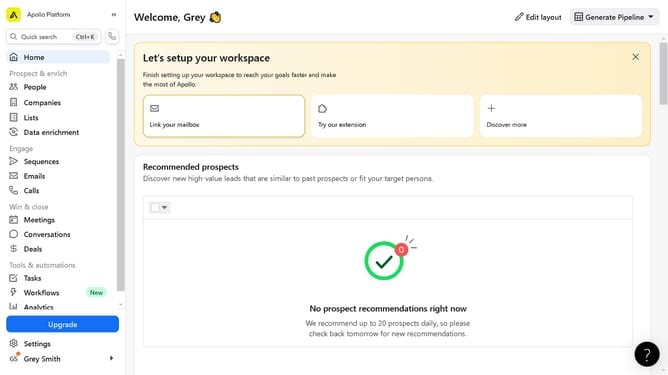
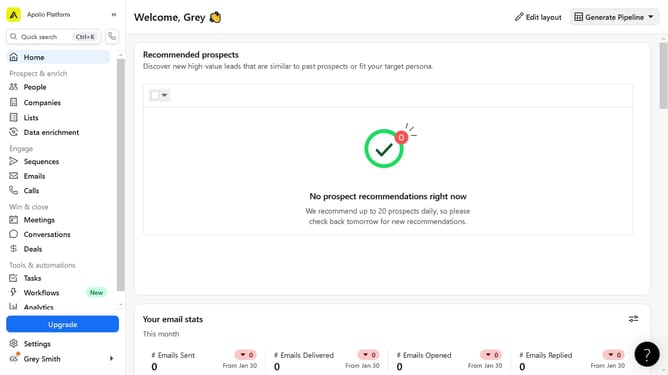
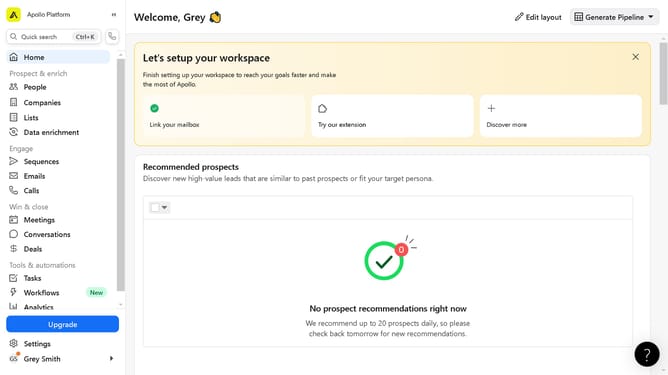
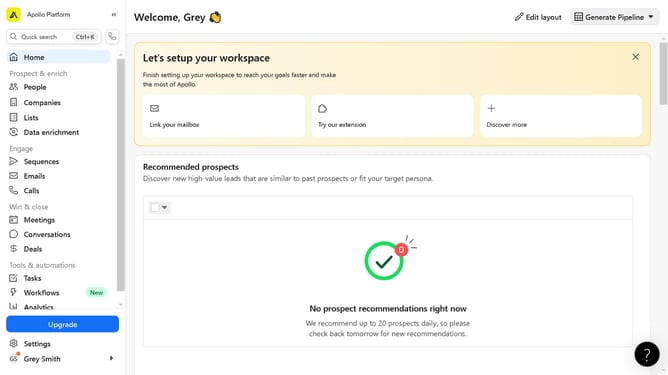
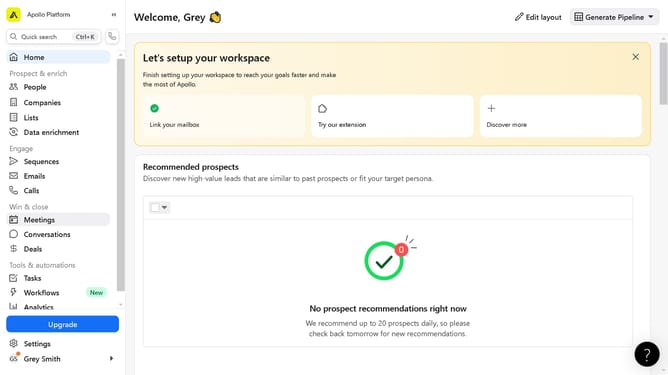
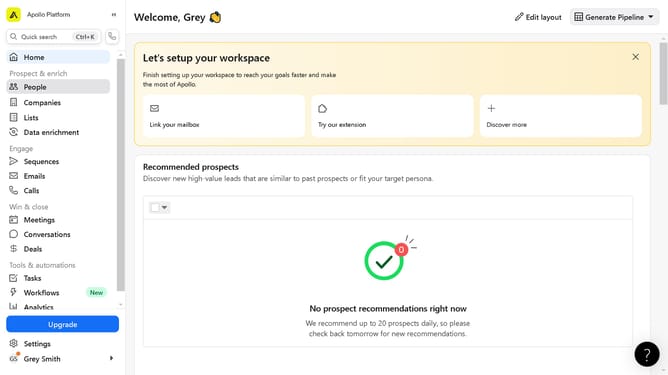
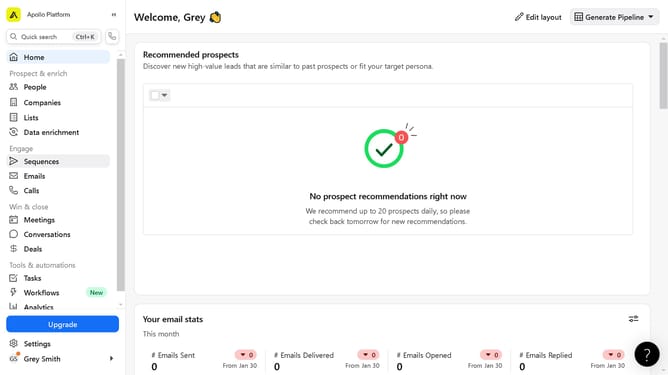
- First click on the "Edit layout" button in the top-right corner of the dashboard
- Then click the "Add" button (plus icon) in the top-right corner of the interface
- In the Widget library sidebar that appears, click and drag the widget to apply to your layout
- Click on the "Save as new" button in the top-right corner to save your changes
- Enter the name of your layout in the input field of the popup dialog
- Finally, click the "Save" button in the popup dialog to confirm and save your new layout
Why should you add custom widgets to my layouts on Apollo
Apollo is a versatile platform designed to streamline your project management tasks with efficiency and ease.
Integrating custom widgets into your layouts on Apollo enhances your workflow by allowing you to tailor your dashboard to fit specific needs.
This feature empowers you to organize your work environment seamlessly, providing immediate access to the tools and information that matter most to you.
By customizing your layouts, you increase productivity and ensure a more intuitive and personalized user experience.
Last update