How to add card content block in Manychat
Here is how to add card content block in manychat
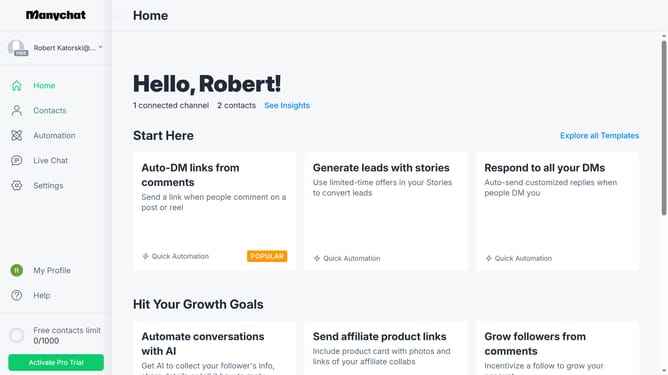
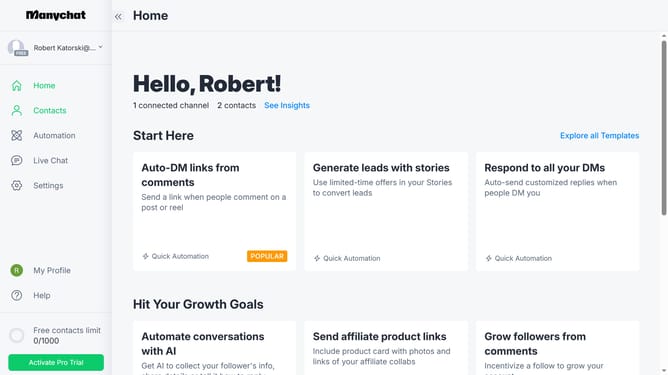
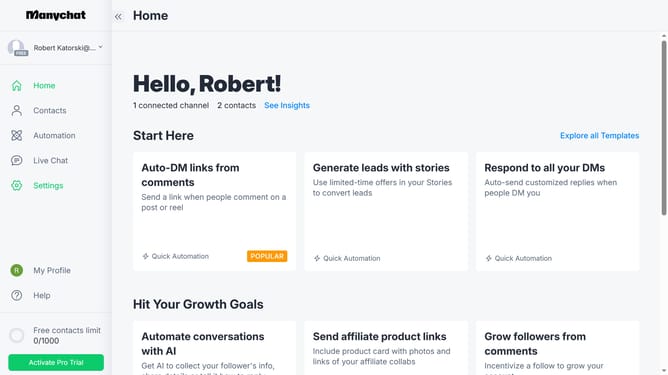
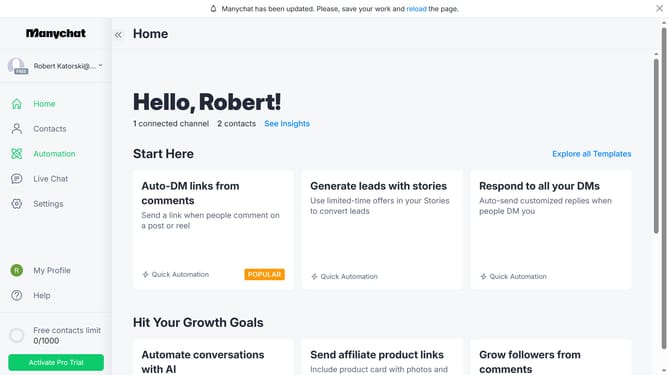
- First click on the "Automation" option in the left sidebar menu
- Then click on an automation in the automations list
- Next click on the content block in the automation builder
- Then scroll down in the content block details panel
- Click on the "More" button at the bottom of the content blocks menu
- Finally click on the "Card" content block option in the expanded menu
Why should you add card content block in Manychat
Manychat is an innovative platform designed to streamline and optimize your communication with audiences via chat automation.
The card content block in Manychat is a dynamic feature that enhances user interaction by allowing the incorporation of visual elements and text in a single, engaging format.
Using the card content block, users can present information in a visually appealing manner, making it ideal for showcasing products, promotions, or announcements.
This approach not only enriches the user experience but also significantly boosts engagement and retention within your interactions.
Last update