Mural
Mural is a visual collaboration platform for brainstorming, planning, and running remote workshops on a shared canvas.
Website
Industry
Design
Share this article:

How to add an element to content library an infinite canvas in Mural

Here is how to add an element to content library an infinite canvas in mural

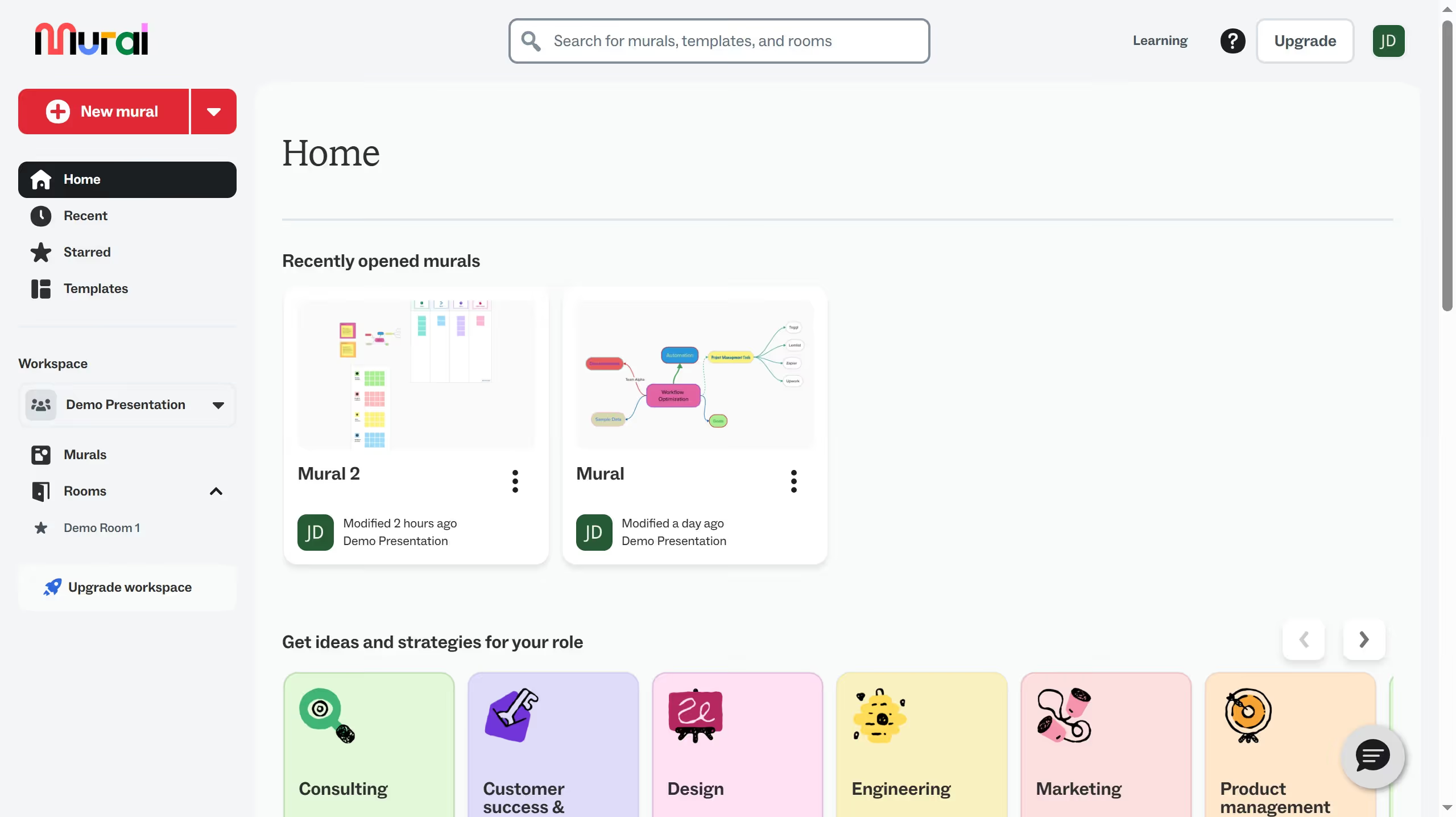
  1. First click on "Murals" in the left sidebar
  2. TThen click on the mural filename that you want to manage to open it
  3. Next click on the object in the canvas to select it
  4. Then right-click on the selected freeform object to open the context menu
  5. Next click on "Add to" option in the context menu
  6. Then click on "Content library" option from the submenu
  7. Next click in the "Name" text input field in the save dialog and enter the element name
  8. Finally click on the "Save" button to save the item to the content library

Create your own interactive guide with Guideflow

Why should you add an element to content library an infinite canvas in Mural

Mural is a collaborative digital workspace that empowers teams to brainstorm and innovate together seamlessly.

Adding an element to the content library on Mural's infinite canvas allows for streamlined organization and retrieval of crucial components. This feature ensures that frequently used elements are easily accessible, enhancing efficiency during collaborative sessions.

By storing elements in the content library, teams can maintain consistency in their projects and save time, fostering a more productive and dynamic creative process.

Last update
March 16, 2026
Cursor MariaA cursor points to a button labeled "James."

Create your first demo in less than 30 seconds.