How to add a URL in a message in Lemlist
Here is how to add a url in a message in lemlist
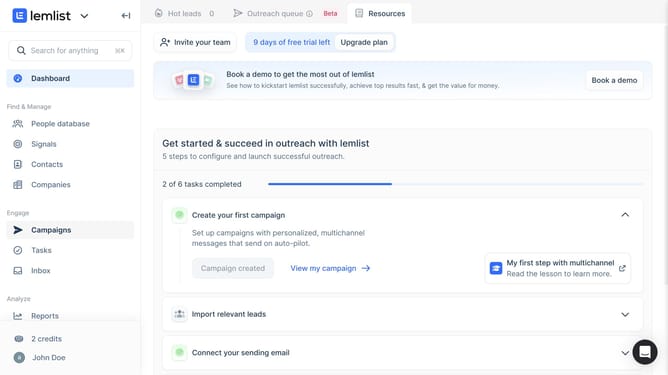
- First click on the "Inbox" menu item in the left sidebar under the Engage section
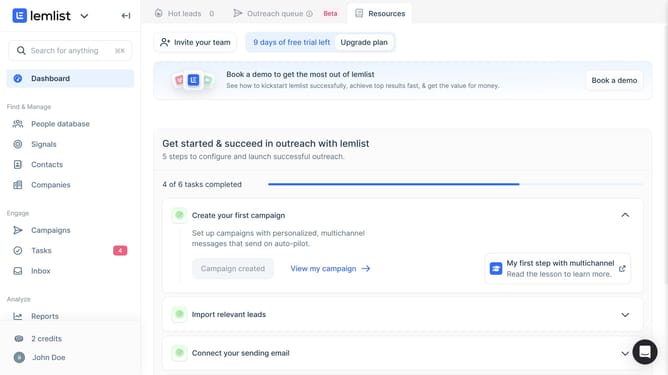
- Then click on the conversation from in the conversations list to open it
- Then click on the message compose area at the bottom of the email thread and enter your message
- Then click on the "More options" button or three dots icon in the email composition toolbar
- Then click on the "Insert Link" button in the email composition toolbar
- Then click on the "URL" input field in the Insert Link dialog and enter the URL
- Then click on the "Text" input field in the Insert Link dialog and enter the link text
- Then click on the "Open in new window" checkbox in the Insert Link dialog
- Then click on the "Insert" button to add the link to the email
- Finally click on the "Send" button to send the email with the inserted link
Why should you add a URL in a message in Lemlist
Lemlist is an intuitive tool designed to personalize and perfect your outreach campaigns.
When adding a URL in a message with Lemlist, it instantly enhances the interactivity and engagement of your outreach messages. By embedding hyperlinks, you provide recipients with direct access to important content or resources you're promoting.
Taking advantage of this feature not only streamlines communication but also boosts the chances of driving traffic to your website or landing pages, ultimately increasing conversion rates.
Last update