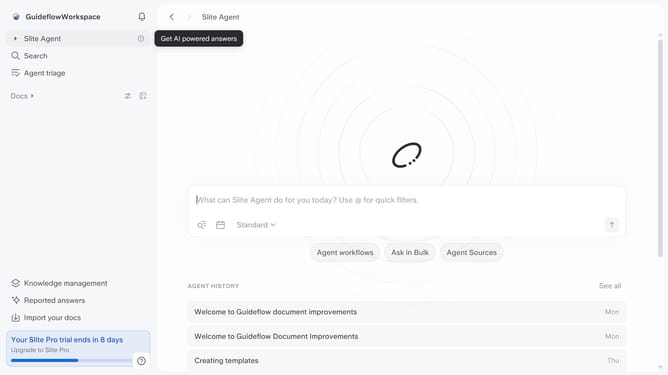


How to add a sketch in a document in Slite
Here is how to add a sketch in a document in slite
- First click on "Docs" item in the left sidebar
- Then open the Slite doc you want to edit
- Then click where you want to add the sketch and type "/" to open the formatting menu
- Then click on "Sketch" from the dropdown menu
- Click on the "Start sketching" button
- Then click on the pencil icon in the top toolbar to start sketching
- Finally click on the "X" button to close the sketch window
Why should you How to add a sketch in a document in Slite
Slite is a collaborative workspace tool designed to streamline team communication and document organization.
The ability to add sketches to documents in Slite transforms how teams brainstorm and capture ideas. By incorporating visuals directly within your notes, you can enhance clarity and engagement, making complex concepts easier to understand.
This feature encourages creativity and collaboration, allowing team members to communicate ideas visually and make notes more interactive and memorable. It's perfect for quick mockups, illustrating thoughts, or adding a personal touch to documentation.
Overall, integrating sketches into Slite documents boosts productivity and enriches team interactions, offering a unique way to convey information beyond text.