How to add a side image to a sign-up form in Klaviyo
Here is how to add a side image to a sign-up form in klaviyo
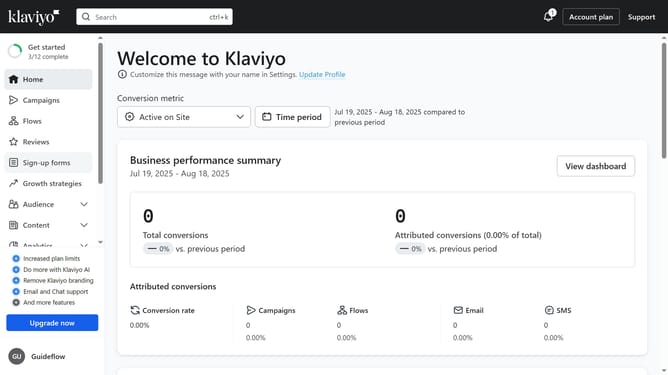
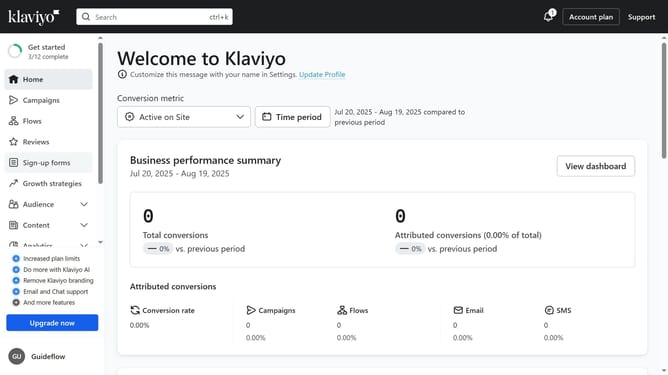
- First click on "Sign-up forms" in the left sidebar menu
- From the list, locate the form where you want to add a side image
- Next click on the options menu (three dots) next to the form
- Select "Edit" from the dropdown menu
- Head to the "Styles" section and scroll to the Side Image settings
- Select "Left image" or "Right image", depending on where you’d like the image to appear
- Then click on the "Side image" in the form to open its settings
- Click on "Select image" button in the side image upload area
- In the Image library, you can select an existing image
- To upload a new image, click on "Upload image" tab
- Then click the "Select Image" button in the upload area and choose an image from your device
- Next, choose an upload version option (Original or Compressed)
- Then click the "Upload" button to upload the selected image
- Once uploaded, adjust the image’s settings if needed
- Finally click the "Publish changes" button in the top-right corner to apply the side image to your form
- Your form will now be shown with the side image applied
Why should you add a side image to a sign-up form in Klaviyo
Klaviyo is a robust platform designed to optimize your email marketing campaigns.
Incorporating a side image into a sign-up form within Klaviyo is a creative way to enhance your form’s visual appeal.
Adding an image provides a personalized touch that aligns with your brand's messaging, effectively capturing the attention of potential subscribers.
This feature not only makes your form stand out but also engages users, potentially increasing your conversion rates.
Last update