How to add a new color to your palette using the color picker on a Miro board
Here is how to add a new color to your palette using the color picker on a miro board
- First from the main dashboard, click on a board to open it
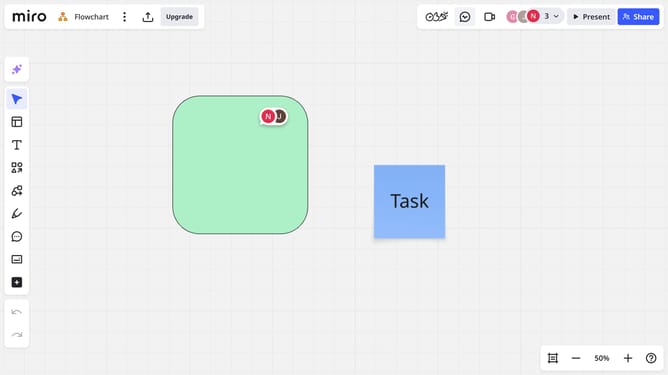
- Then, on the board, select any object to bring up the formatting toolbar (e.g., a shape or text)
- Next click on the Fill color icon in the toolbar
- In the color palette that appears, click the "+" (plus) icon to open the color spectrum
- Then, a custom color editor will appear
- Next click on the color picker dropper tool usually next to the HEX field
- Finally, click anywhere on your board such as a shape, image, or text element to pick up that exact color
- You have successfully added a new color to your palette
Why should you add a new color to your palette using the color picker on a Miro board
Miro is a dynamic online collaborative whiteboard platform designed to boost creativity and teamwork.
One of the key features of Miro is the ability to tailor your digital workspace, and adding new colors to your palette using the color picker enriches this customization process.
Personalizing your color choices not only enhances visual appeal but also improves the organization of your thoughts and ideas.
By seamlessly integrating custom colors, you can make your board more vibrant, aligning it with brand standards or simply matching your creative vision, thus streamlining your collaborative projects.
Last update