How to activate social cards in Mailchimp
Here is how to activate social cards in mailchimp
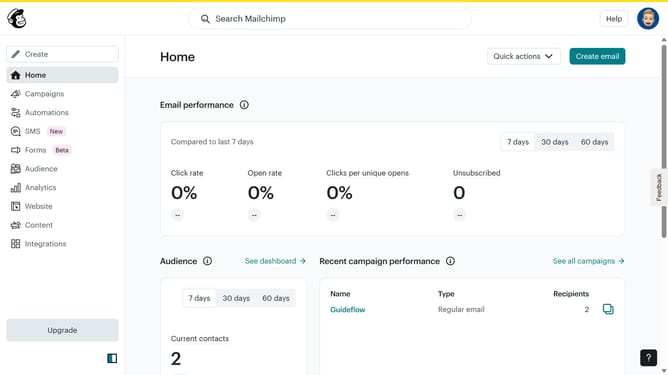
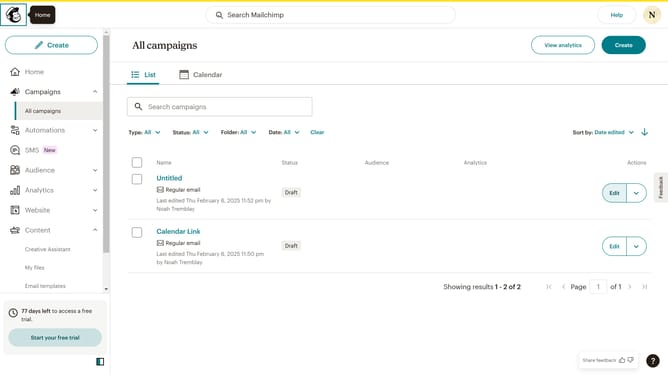
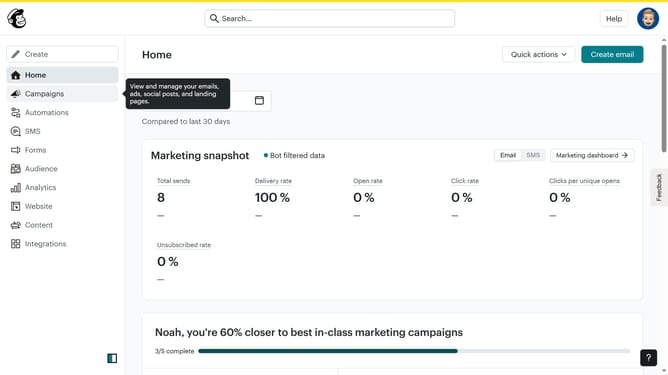
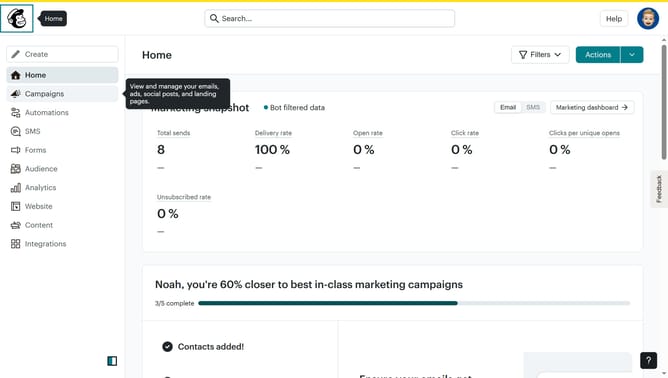
- First click on the "Campaigns" item in the left sidebar menu
- Then click on "Plain Text Email" in the campaigns list
- Click on "Preview and Test" dropdown button in the top navigation bar
- Select "Social Cards" option from the preview dropdown menu
- Click the "Enable Customized Social Cards" toggle switch in the settings panel
- Click "Upload an image" link in the Featured Image section
- Select the app icon image from the Content Studio library
- Click the "Move To" button in the top toolbar
- Click and enter the Title of your social account in the input text field
- Click and type the description of your image in the description text field
- Finally, click the "Save & Close" button to save the social card settings
Why should you activate social cards in Mailchimp
Mailchimp is an all-in-one marketing platform designed to simplify email marketing efforts for growing businesses.
Activating social cards in Mailchimp enhances your email campaigns by customizing how your content appears on social media.
This feature offers a preview that elevates your brand's presence, making your posts more visually attractive when shared.
By ensuring consistent and appealing visuals, social cards can increase engagement and click-through rates, ultimately amplifying your marketing success.
Last update