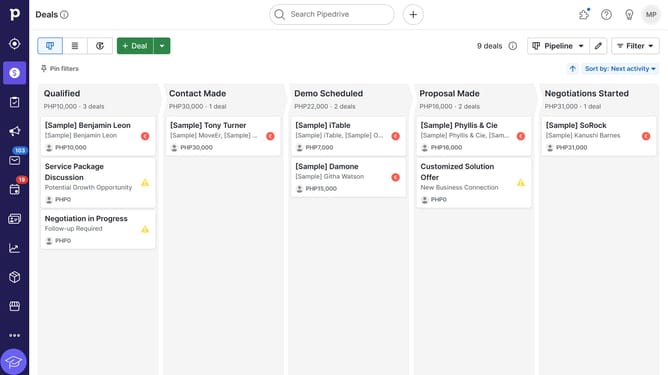
How to transfer automation ownership in Pipedrive
Here is how to transfer automation ownership in pipedrive
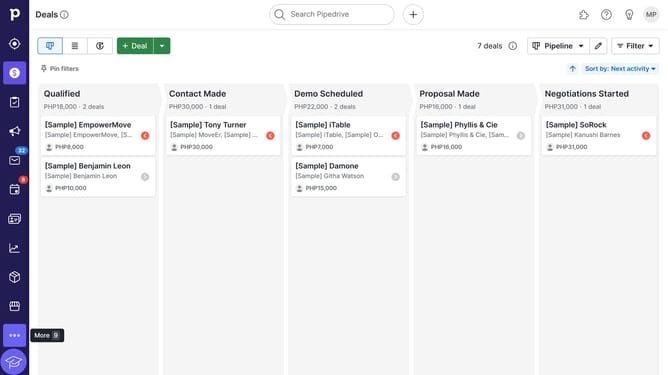
- First click the "More" button in the left sidebar menu
- Then click "Automations" in the expanded menu
- Click the "Automations" tab in the main content area
- Click on the automation that you want to transfer
- Click the "Transfer ownership" icon in the automation details
- Click the search field labeled "Search for user"
- Select the user to whom you want to transfer the automation
- Click the "Next" button in the transfer ownership dialog
- Finally click the "Transfer" button to complete the ownership transfer
Why should you transfer automation ownership in Pipedrive
Pipedrive is a powerful CRM tool designed to streamline and optimize sales processes for businesses of all sizes.
One key feature of Pipedrive is the ability to transfer automation ownership, which is essential for maintaining seamless workflow continuity. This feature ensures that automations, which are vital for saving time and reducing manual effort, can be easily reallocated when team roles change.
By transferring automation ownership smoothly, businesses can ensure continuity in their automated processes, minimizing disruptions and maintaining productivity efficiently.
Last update